# Using CYC Annotate
Get started by reading the [getting started](/tutorials/using-cyc-annotate/getting-started) guide.
# Getting Started
## About
CYC Annotate is a powerful desktop annotation tool for teachers and professionals allowing you to annotate directly over any app.
***
## Toolbar
The toolbar includes a **pen**, **highlighter**, and **eraser** and other tools like shapes, etc.
You can drag it around anywhere on your screen by grabbing the six dots handle at the top. To reposition it, simply move it left or right. If you hold **Shift** while dragging, you can snap it to the edge without it switching into a horizontal layout.
# Whiteboard Manager
## About
The CYC Annotate Whiteboard Manager is a core feature of CYC Annotate that stores all of your whiteboards locally on your device and helps you organise them yourself. It saves your work automatically and lets you group boards into folders, search through them, and switch between them easily.
***
## How to use
To use, whenever the toolbar overlay is active you can do CTRL + SHIFT + W (this is adjustable through settings in shortcuts).
# Using Widgets
## About
CYC Annotate has useful widgets that help you manage time while you work. These widgets can be opened from the **three** **dots** on the toolbar, then going to **More** and selecting the widget you want. Once the widget is on your screen, you can drag it around anywhere to move.
***
## Timer
The Timer Widget lets you set a countdown for any amount of time. You can pause or resume it whenever needed, and it shows a clear visual countdown so you always know how much time is left.
***
## Clock
The Clock Widget shows the current time on your screen. You can switch between a digital or analog display. You can use different time zones to keep track of time in other places.
***
## Stopwatch
The Stopwatch Widget is used to measure how long something takes.You can start, pause, resume, and reset it at any time, and also record lap times to track multiple stages of a task.
# Protocol Links
These protocol links are useful if you want to use specific shortcuts. You can use the `cyc-annotate://` to trigger actions from external links, shortcuts, or other applications.
## App Settings
* **Open Settings:** cyc-annotate://run/settings
* **Appearance:** cyc-annotate://settings/appearance
* **Shortcuts:** cyc-annotate://settings/shortcuts
* **Behaviour:** cyc-annotate://settings/behaviour
* **System:** cyc-annotate://settings/system
* **Labs (Experimental Features):** cyc-annotate://settings/labs
* **Reset:** cyc-annotate://settings/reset
* **About:** cyc-annotate://settings/about
## Tools & Actions
**Canvas Commands**
* **Clear Canvas:** cyc-annotate://run/clear-all
* **Undo Action:** cyc-annotate://run/undo
* **Redo Action:** cyc-annotate://run/redo
* **Toggle Toolbar:** cyc-annotate://toggle-toolbar
* **Screen Capture:** cyc-annotate://run/capture
* **Zen Mode:** cyc-annotate://run/zen-mode
## Whiteboard
* **Open New Whiteboard:** cyc-annotate://whiteboard
## Misc
* **Open Recovery Assistant:** cyc-annotate://recovery
* Copy Any Deep Link: Inside the app, click on the command on the **Command Menu (Ctrl + K)** and press **Ctrl + Shift + C** to copy its unique deep link.
# Performance & Stability Notice
CYC Annotate may slow down when handling large canvases. If the app becomes unresponsive or crashes, press **CTRL + SHIFT + Q** (or hold it) to force quit immediately.
Future updates aim to improve performance and better support large workloads.
# Using Recovery Assistant
Safely recover, back up, diagnose, or reset CYC Annotate.
## Recovery Assistant
{% hint style="warning" %}
Recovery Assistant is a **beta** tool. Export your data before restoring or resetting.
{% endhint %}
Recovery Assistant restarts CYC Annotate in a dedicated recovery mode. Use it to restore data, create backups, diagnose problems, or reset the app safely.
It opens in its own window. CYC Annotate closes its normal windows while recovery mode is active.
### Open Recovery Assistant
1. Right-click the CYC Annotate tray icon.
2. Select **Help → Recovery Assistant**.
3. Wait for CYC Annotate to restart in recovery mode.
Alternatively, you can do WIN + R or type in your browser cyc-annotate://recovery.
### Leave recovery mode
Choose **Exit Recovery Assistant** from the main menu. You can also press Esc.
Confirm the prompt to restart CYC Annotate normally.
### Choose the right option
* Use [back up and recover data](/tutorials/using-cyc-annotate/using-recovery-assistant/back-up-and-recover-data) to create or restore a backup.
* Use [diagnostics and system information](/tutorials/using-cyc-annotate/using-recovery-assistant/diagnostics-and-system-information) to investigate an issue.
* Use [reset options](/tutorials/using-cyc-annotate/using-recovery-assistant/reset-options) only when you need to remove data or preferences.
{% hint style="info" %}
Diagnostics identify problems. Import, restore, and reset actions change data.
{% endhint %}
# Back up and recover data
Create backups, import saved data, and restore automated backups.
## Back up and recover data
Use these options to protect your CYC Annotate data or recover a previous version.
### Before you begin
Create a backup before restoring or resetting the app. Restoring replaces your current data.
### Create a backup
Go to **Main → Advanced → Export Data**.
Recovery Assistant creates a ZIP file containing your settings, whiteboards, and related data.
### Restore a saved backup
Choose **Import Data** and select a ZIP backup.
Importing replaces all current app data.
### Restore an automated backup
1. Go to **Main → Advanced → Restore Automated Backup**.
2. Select a previous automated backup.
3. Review the backup, then confirm the restore.
Restoring overwrites your current data.
{% hint style="warning" %}
Importing and restoring replace current data. Create a backup first if needed.
{% endhint %}
# Diagnostics and system information
Check CYC Annotate, your system, and diagnostic logs.
## Diagnostics and system information
Use these tools to investigate CYC Annotate issues. They report problems but do not fix them.
### View system details
Go to **Other Options → System Details**.
This view shows the app version, operating system, hardware, and runtime information. Select the copy option to share these details with support.
### Open diagnostic logs
Go to **Other Options → Diagnostic Logs**.
This opens the app log file. Some events may be missing if logging was disabled in **Settings**.
### Run diagnostics
Go to **Other Options → Run Diagnostics**.
* **Start System Validation** checks settings, whiteboards, install permissions, and basic system health.
* **Start Advanced Diagnostics** also checks install integrity, GPU acceleration, and memory.
When diagnostics finish, select **Export Report** to save a PDF report. Select **Rescan** to run the checks again.
{% hint style="info" %}
Diagnostics only identify issues. Use import, restore, or reset options when a corrective action is needed.
{% endhint %}
# Reset options
Reset CYC Annotate settings or data safely.
## Reset options
Go to **Other Options → Advanced Options** to choose a reset action.
{% hint style="warning" %}
Create a backup before using these options. Some actions permanently delete data.
{% endhint %}
### :gear: Reset settings
Restores default preferences and shortcuts. Your whiteboards stay intact.
### :box-isometric: Delete all whiteboards
Permanently deletes every whiteboard. Your settings stay intact.
### :trash-can: Clear app data
Permanently deletes all app's data (some things will be preserved like diagnostic logs)
{% hint style="danger" %}
**Clearing all app data** is an option that should be used as a last resort. This operation cannot be undone!
{% endhint %}
# Colour Picker
Get started by [**picking a colour**](/tutorials/colour-picker).
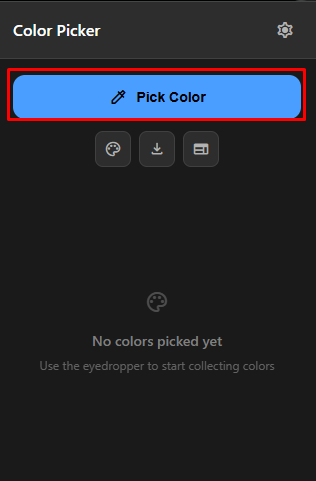
# Pick a colour
To pick a colour, click the **Pick Color** button to open the eyedropper.
# Using export tool
1\) To export your colours, press the **settings icon** on the top right of the pick colour.
2\) Visit **Data Management** then click "Export".
# Using CYC Notes
Get started by [**creating notes**](/tutorials/using-cyc-notes/creating-notes).
# Creating Notes
On the [**homepage**](https://cyc-notes.creatoryogames.com), click"Create Your First Note". A dialog should appear and then you can enter the necessary content that you want. Please bear in mind that a **title** is required.
Once you've entered the fields, click on "Create Note".
{% hint style="success" %}
All done! Congratulations on creating your first note.
{% endhint %}
# Deleting Notes
1\) To delete a note, navigate to the [**homepage**](https://cyc-notes.creatoryogames.com) or the [**notes page**](https://cyc-notes.creatoryogames.com/all-notes).
2\) Hover on the note you want to delete.
3\) Click "Delete" on the dialog that appears.
{% hint style="danger" %}
Deleting a note **cannot** be undone under any circumstances. Please be certain.
{% endhint %}
# Useful Links
* [**Roblox Group**](https://www.roblox.com/communities/33130403/CreatorYo-Games-Creations#!/about)
* [**Discord Server**](https://discord.gg/QVdChYe4VK)
* [**Email Support**](mailto:help@creatoryogames.com)
* [**CreatorYo Creations / Games Website**](https://creatoryogames.com)
# Our Security Practices
At **CreatorYo Creations / Games** we take your safety seriously. Whether you’re browsing our website, playing our games, or interacting with our blog platform, we’re committed to creating a secure environment for everyone.
## Security Measures We Implement
| **Section** | **Details** |
| ----------------- | ----------------------------------------------------------------------------------------------------------------------------------------------------- |
| Commitment | CreatorYo Creations / Games is committed to maintaining a secure environment across our websites, games, and related services. |
| Security Measures | We utilise services such as Cloudflare, apply rate limiting, and perform regular security testing to help protect our systems from abuse and threats. |
| Disclaimer | No electronic system can be guaranteed to be completely secure. |
If you have any questions or concerns, please let us know.
## Report a Vulnerability
If you ever discover a security issue or vulnerability, please contact us immediately at [**help@creatoryogames.com**](mailto:help@creatoryogames.com). Your help will be much appreciated.
# How do I contact CYC / CYG?
If you're unsure how to contact our team, you can reach us through any of the following ways:
* **Live chat** on creatoryogames.com (available in the bottom-right corner)
* **Email** us at [**help@creatoryogames.com**](mailto:help@creatoryogames.com)
* [**Our communication server**](https://discord.gg/E2N38WTcAm)
Our team is always here and ready to help with any questions or concerns.
# How do I claim Ultimate?
### How to Claim Ultimate
To unlock your ultimate perks, please follow these steps:
1\) Visit the [**Dashboard**](https://creatoryogames.com/dashboard)
2\) Open [**Settings > Linked Accounts**](https://creatoryogames.com/dashboard/settings/linked-accounts)
3\) Ensure **Discord** and Roblox **accounts** are linked.
3\) Make sure you've joined our [**Discord serve**r](https://discord.gg/E2N38WTcAm).
5\) You're Ultimate perks will be applied automatically once everything is linked.
{% hint style="info" %}
**If you have any questions or you're experiencing issues, please contact us at** [**help@creatoryogames.com**](mailto:help@creatoryogames.com)**.**
{% endhint %}
# Request Refund
Unfortunately, you **cannot** refund CreatorYo Creations Ultimate as it’s against Roblox TOS to proceed with a refund.
If you’re not satisfied with the overall experience, please feel free to submit us feedback on how we can improve it for you and everyone else.