Sharing safely
Stay in control of who sees, joins and edits what you share
Sharing should feel easy and safe. Here's how to stay in control, whoever you're working with.
Live sessions
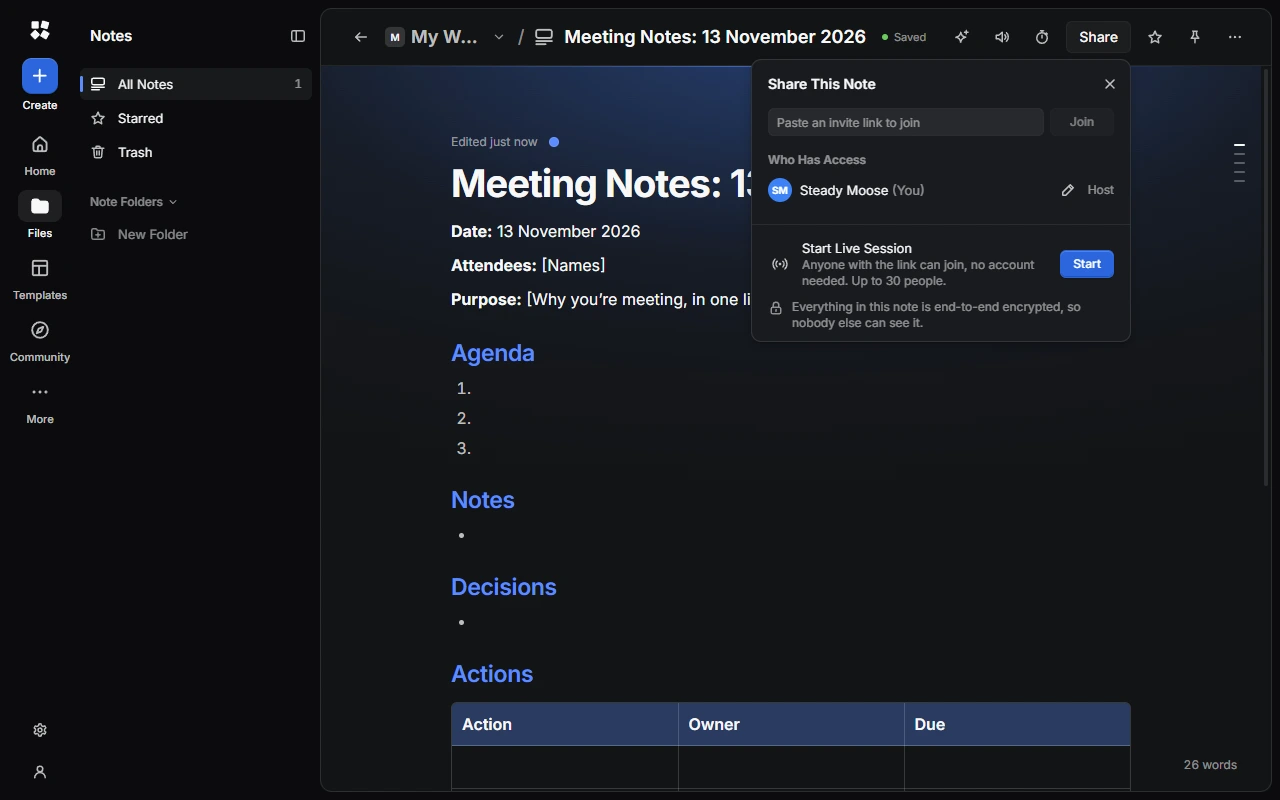
Live sessions are end-to-end encrypted, so nobody at CYC Studio can see them, and you, the host, are in charge. By default, anyone with the link can join, edit and save a copy, so a few settings are worth knowing:
- Only share the link with people you trust. If it gets out, choose Reset Invite Link in the Share panel.
- Choose who can join. Set Who Can Join to Ask First to approve each person, or Nobody New to close the door. You can also turn on Require Passcode.
- Choose what guests can do: Can Edit or Can View. Under More Settings, you can freeze editing, stop guests saving a copy, or give guests random names.
If someone causes trouble, open their menu and choose Remove and Block, then Reset Invite Link in case they try another device. Undo damage with Restore, or end it for everyone with Stop Session, which deletes the session's data.
Sessions protect themselves too. Anyone deleting or adding a huge amount at once is switched to view only, and you're told if lots of wrong passcodes are tried.
If you're a guest and feel uncomfortable, choose Leave Session and email help@creatoryogames.com. If you're under 18, talk to an adult you trust. To join without your name and picture, turn off Show My Name and Picture in Settings › My Account › Your Info.
Meetings
Meetings are end-to-end encrypted, so nobody at CYC Studio can see or hear them. Anyone with the invitation link, and the passcode if there is one, can join or ask to, so a few things are worth knowing:
- Share the link somewhere private. If it reaches people it shouldn't, choose Regenerate Link in the meeting's Invitation Link….
- Keep the waiting room on when you invite people you don't know well, and turn on Require Passcode for extra protection. Send the passcode separately from the link.
- Choose what guests can do. Under What Guests Can Do in Settings › Meet › When You Host, choose whether everyone or only hosts can chat, unmute, use a camera and share a screen. You can change these during a meeting too.
- Recordings are made on the recorder's device. Only hosts and co-hosts can record, and everyone is told, but people could still record a meeting another way, so share with care.
If someone worries you, leave the meeting and email help@creatoryogames.com. Hosts can also lock the meeting and remove people. Privacy and security in Meet has more.
Workspaces
- Workspaces are end-to-end encrypted and private to their members.
- Invite links give Full Access unless you change it, so only share them with people you trust. If one gets out, choose Reset Link… or Turn Off Link.
- Give people only the access they need, such as View Only.
- To remove someone, choose Remove from Workspace… in Settings › Workspaces › Current Workspace › Members, then reset the invite link so they can't rejoin.
- If someone in a workspace worries you, choose Leave… in Settings › Workspaces › Current Workspace, then email help@creatoryogames.com.
Drive files shared by link
A file you share by link is no longer end-to-end encrypted. Our team checks it before the link works, and then anyone with the link can open it. Only share what you have the right to, and choose Stop Sharing when you're done.
Opening a file someone shared? Don't sign in or pay through links inside it unless you trust who sent it, and choose Report File if something looks wrong.
Forms
- Our team checks every version of a form before its link works.
- Answers are end-to-end encrypted, and never include who sent them, even with Require Sign-In on.
- Control who answers, with One Answer per Person, a closing time or an answer limit, under Answers in the form's settings.
- Stop answers instantly with Stop Responses in the Responses tab.
- Never ask for passwords or bank details. It isn't allowed.
Answering a form? Never enter passwords, codes or bank details, even if it asks, and choose Report Form if something seems off.
Last updated on 15 November 2026