AI Chat
Ask questions, work through files and write code, organise chats into projects, and use temporary chats
About
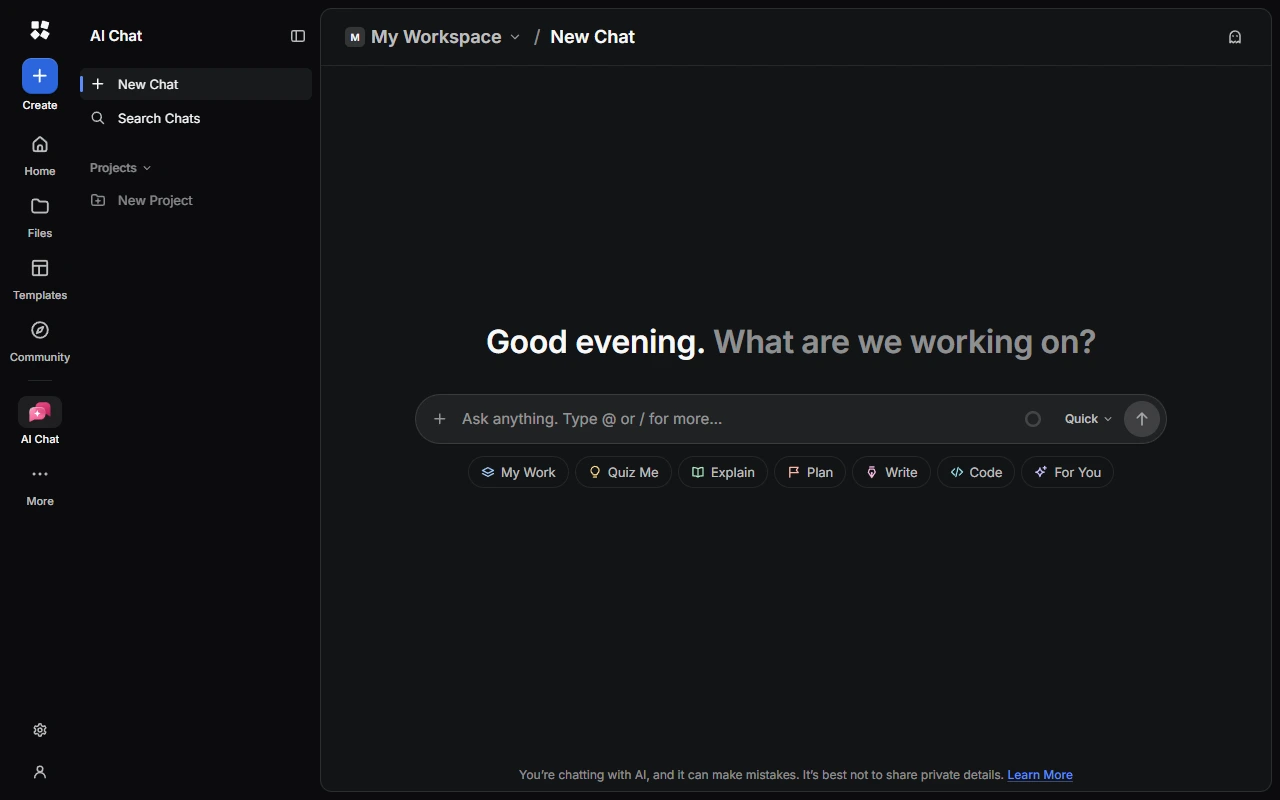
AI Chat is a full-page chat for questions, files and code. It can also make and change your designs, notes, slides, events and tasks, right beside the chat.
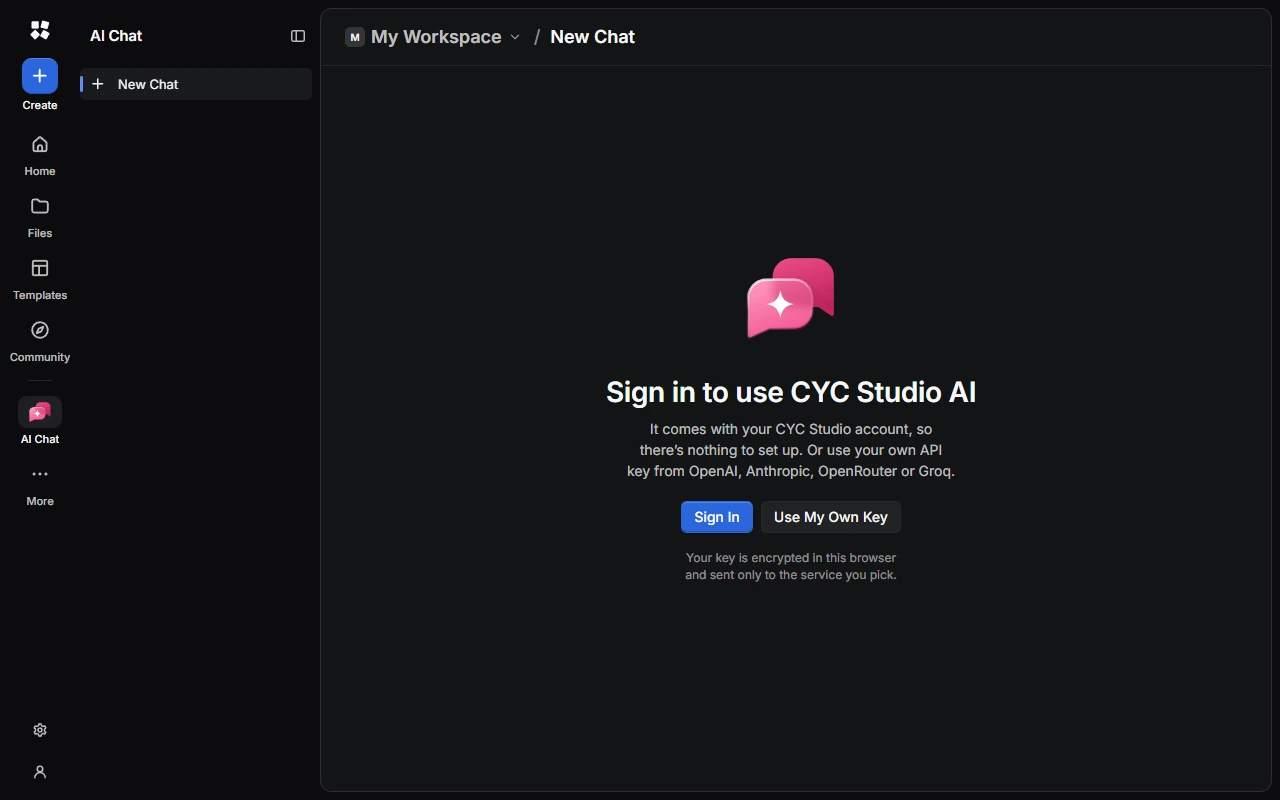
AI Chat uses CYC Studio AI whenever you're signed in. If you aren't, it uses the provider you chose in Settings › AI Assistant, with your own key. Choose Sign In or Use My Own Key to get started.
Open it from More › AI Chat in the rail, or Create › Chat.
Start a chat
Type your message and press Enter. Press Shift + Enter for a new line. Messages can be up to 8,000 characters. To start again, choose New Chat, or press Ctrl + Shift + O.
- Ideas: choose an idea, such as Explain, Plan, Write or Code, to get started.
- @ mentions: type @ to choose a mode or product. For example, @web looks things up first, @plan shows a plan before acting, @quiz tests you, @code builds a code project, and @notes or @tasks works with that product.
- Skills: type / to choose a skill.
While a reply is being written, you can type your next message and press Enter to queue it, or press Ctrl + Enter to stop the reply and send straight away.
Add photos and files
Choose +, then Add Photos and Files… or Add from Drive…, or drag them into the chat.
- Images: PNG, JPEG, WebP, GIF, AVIF and BMP, up to 8 per message and 30 MB each.
- Files: PDF, Word, PowerPoint and Excel files, and text and code files, up to 3 per message and 32 MB each.
You can also choose Draw a Sketch….
Thinking and web search
With CYC Studio AI, choose how hard it thinks: Quick for everyday questions, or Think and Deep for harder ones. Think and Deep take longer and use more of your limits.
CYC Studio AI can look things up using DuckDuckGo instant answers and Wikipedia. It can't see news, live prices or most websites. Choose the sources under a reply to see where an answer came from. Turn this off in Settings › AI Chat › Search the Web.
Work with replies
Under each reply you can:
- Copy Reply, or listen to it with Read Aloud.
- Regenerate it: try again, think harder, search the web, or ask for a change. Each reply keeps up to 10 versions. Use the arrows to switch between them.
- Branch from Here to carry on in a new chat.
- See Reply Details, such as how long it took.
- Report a Safety Concern, with CYC Studio AI. See Report a reply.
To change something you sent, choose Edit Message.
Files and code it makes
AI Chat can make PDF, Word, PowerPoint, Excel, CSV, Markdown and text files. They open beside the chat in split view, where you can Download them. Code projects show the code and a live preview, and you can download them as a ZIP file. Press Ctrl + \ to open or close split view.
Temporary chats
A temporary chat doesn't use or add to the assistant's memory, and it's gone when you start a new chat or reload, unless you choose Save Chat. Choose Temporary Chat at the top of a new chat, or press Ctrl + Shift + Y.
Organise your chats
- Pin chats to keep them at the top. Open a chat's ⋯ menu to rename, pin, move or delete it.
- Search Chats (Ctrl + Shift + F) finds chats and projects.
- View Options groups the list by date, day, week, month or project with Group By, and sorts it with Sort By.
- From the chat's menu, choose Copy Chat or Download as Markdown to keep a copy.
Projects
A project groups related chats, with instructions the assistant follows in every chat inside it. Under Projects, choose New Project, give it a name, icon, colour and instructions, then choose Create Project. Deleting a project moves its chats back to your chat list.
AI Chat keeps your 500 newest chats in each workspace on a device. Older ones are removed from the device unless they're pinned or locked. Synced ones stay in your account, and the rest are deleted for good.
Chat sync
If you're signed in, you can keep your chats on all your devices, end-to-end encrypted. Chat sync is off until you turn it on: go to Settings › AI Chat › Chat Sync and turn on Sync Chats, then agree. Temporary chats, locked chats and chats started while you weren't signed in never sync. Turning sync off removes your chats from your account and keeps the copies on your devices. Chats that were never downloaded to a device, for example with Cloud Only on, are gone.
In the Windows app, you can also lock a chat with Windows Hello.
Settings
Settings › AI Chat chooses which products AI Chat can use, whether it searches the web, and chat options such as naming chats automatically, suggesting follow-ups, opening split view automatically and the read aloud voice.
Keyboard shortcuts
| Action | Shortcut |
|---|---|
| New chat | Ctrl + Shift + O |
| Temporary chat | Ctrl + Shift + Y |
| Search chats | Ctrl + Shift + F |
| Split view | Ctrl + \ |
| Rename chat | F2 |
| Delete chat | Ctrl + Shift + Backspace |
| Go to the message box | / |
| Send / new line | Enter / Shift + Enter |
| All shortcuts | Ctrl + Shift + / |
Last updated on 13 November 2026