AI Assistant
Get help inside each product with CYC Studio AI or your own AI provider, and choose what the assistant can do and remember
About
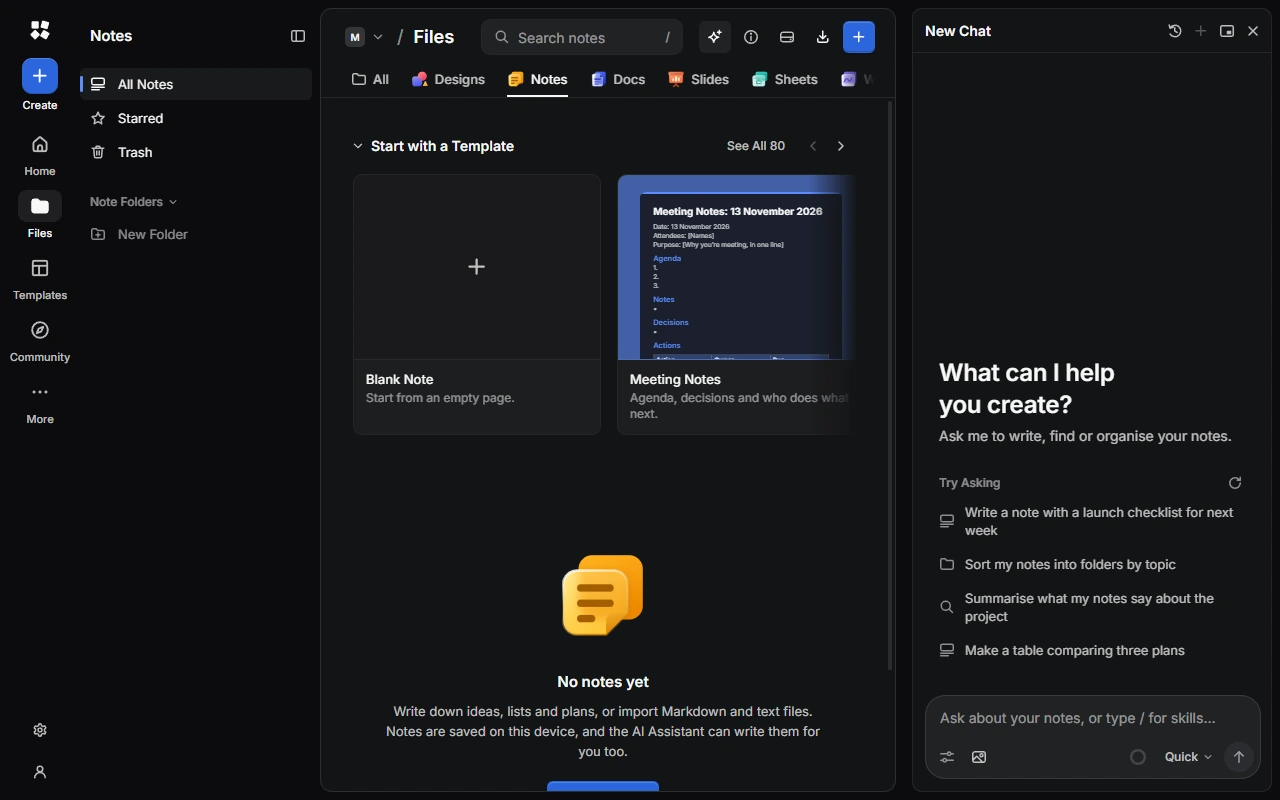
The AI Assistant does the work for you, right in the app. Ask it to lay out a poster, rewrite a paragraph, build a presentation from a note, fill in a sheet, plan your week or tidy your tasks. Every change it makes can be undone.
It works in Design, Notes, Docs, Slides, Sheets, Whiteboards, Forms, Calendar, Tasks, Palette and Drive. In Docs, Forms and Whiteboards, open a file to use it.
Open the assistant
- Choose AI Assistant (the sparkle) in the top bar, or press Alt + A.
- In Notes, select some text and choose Ask AI to ask about it.
Type what you'd like and press Enter. Under Try Asking, you'll find ideas to start with.
The panel's buttons let you see your Chat History, start a New Chat, float the panel over the canvas or dock it to the side, and close it. Chats with the assistant are saved on your device.
Add pictures and context
Use the buttons in the message box to add images, Draw a Sketch…, or, in Design, Slides and Whiteboards, Attach the Canvas or Capture an Area…. The assistant's options also include:
- Plan Mode asks the assistant to show you a plan before it changes anything.
- Attach Selection Automatically includes what you've selected with each message.
- Skills… opens Settings › AI Assistant › Skills, where you can see and make skills. To use one, type /.
Approve, undo and redo its work
When the assistant wants to do something that needs your permission, it asks. Choose Don't Allow, Always Allow, or the action itself. After a reply, choose Revert to undo what it changed, or Restore to bring the changes back.
Choose a provider
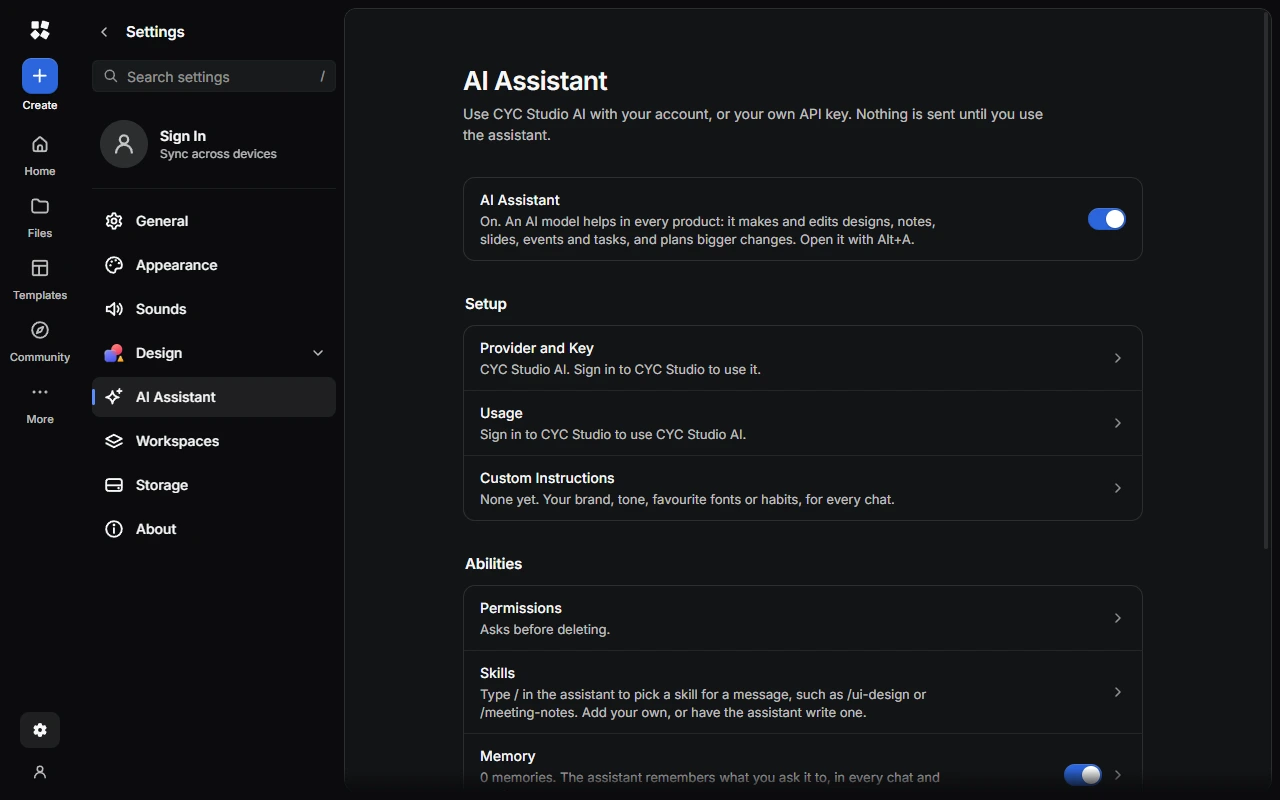
Go to Settings › AI Assistant › Provider and Key and choose a Provider:
- CYC Studio AI (the default) comes with a free CYC Studio Cloud account, so there's no API key to set up. See CYC Studio AI.
- OpenAI, Anthropic, OpenRouter or Groq, with your own API key. Choose Get a Key if you don't have one yet.
- Local Server (Ollama, LM Studio) for a model running on your own computer or network.
- Custom Host (OpenAI-compatible) for other services, such as Google Gemini, Mistral or DeepSeek.
Paste your key, then choose Save and Test Key. Under Remember Keys, choose whether to keep keys On This Device or only for This Session.
Your keys are encrypted on your device and never sent to CYC Studio. With your own provider, what the assistant needs goes straight from your device to that provider, and its own terms and charges apply.
If you aren't signed in and CYC Studio AI is chosen, the assistant shows Sign in to use CYC Studio AI. Choose Sign In, or Use My Own Key.
Choose what it can do
In Settings › AI Assistant › Permissions, choose Allow, Ask First or Deny for each kind of action:
- Read Your Library
- Add New Things
- Edit Your Work
- Delete (set to Ask First to start with)
- Open and Move Around
- Change Its Memory
Memory
The assistant can remember lasting preferences, such as your company's name or the tone you like. It only saves a memory when you ask it to, or tell it something you'd like it to keep. Memory is on until you turn it off.
In Settings › AI Assistant › Memory, you can see, edit and delete saved memories, add your own, turn off Use Memory, or Delete All Memories. You can keep up to 100 memories of up to 500 characters each.
If you're signed in, you can turn on Sync Memories to keep them on all your devices. They only upload once you agree.
More settings
Settings › AI Assistant also has:
- Custom Instructions, sent with every message (up to 2,000 characters).
- Model and Effort, Web Search and Fast Mode, when you use your own provider. Web search can use your provider's search, DuckDuckGo or your own SearXNG server.
- Message Box and Chats, such as sending a picture of the canvas, reopening your last chat, and clearing saved chats.
- What Is Sent, which explains what goes to the AI.
To turn the assistant off everywhere, turn off AI Assistant at the top of Settings › AI Assistant.
Last updated on 13 November 2026