Create an account and sign in
Create a free CYC Studio Cloud account, sign in on your devices, and switch between accounts
Do I need an account?
No. CYC Studio works without one, and everything you make stays on your device. A free CYC Studio Cloud account lets you:
- sync your work between devices, end-to-end encrypted;
- use Drive and Forms;
- host video meetings in Meet;
- share a workspace with other people;
- publish to Community;
- use CYC Studio AI without an API key of your own.
Create an account
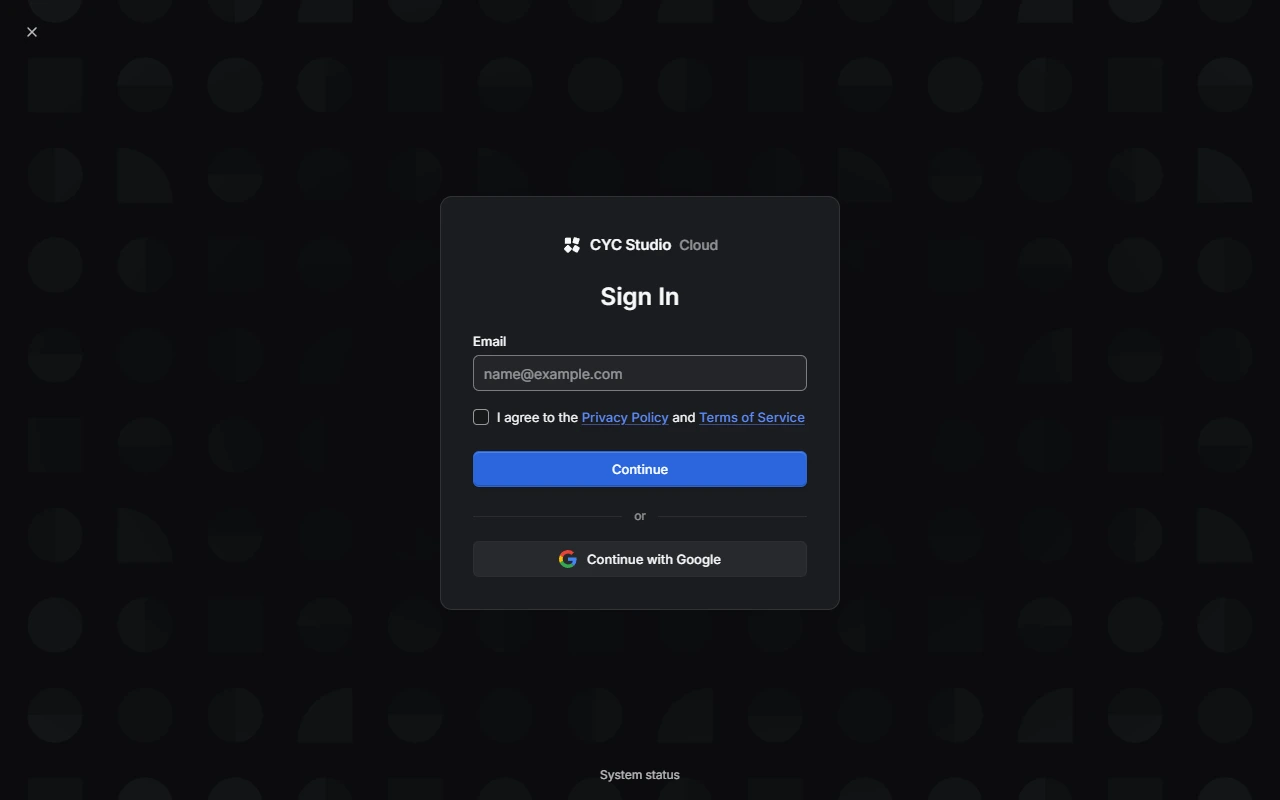
Choose Sign In
Choose Sign In at the bottom of the rail.
Enter your email address
Enter your email address and tick "I agree to the Privacy Policy and Terms of Service", then choose Continue.
Enter the code
We email you a 6-digit code, and a link that does the same job. Enter the code and choose Verify. Codes last 5 minutes. If yours runs out, choose Send a New Code.
Tell us about you
Under Create Your Account, add a picture if you like, your Display Name, the Country you live in and your Date of Birth (month and year), then choose Create Account. We check your country and date of birth once, and don't keep them.
You can also choose Continue with Google, or Use a Passkey if you've added one.
You must be at least 13 to create an account, or older in some countries. The Terms of Service list the minimum ages. If you're under 18, check with a parent or guardian first.
Work you already have
If you've made things on this device before signing in, CYC Studio asks Sync what's on this device? Choose Upload and Sync to add them to your account, or Keep on This Device to leave them where they are. You can upload them later from Settings › My Account › Sync.
Sign in on another device
Choose Sign In and enter your email address. Depending on what you've set up, you can sign in with an emailed code, your password, a passkey or Google. If you've turned on two-step verification, you'll also need a code from your authenticator app.
Your encrypted work then needs to be unlocked on the new device. See Unlock a new device.
You can be signed in on up to 3 devices at once. If you're already on 3, choose one to sign out of, then Sign Out and Continue.
Use more than one account
You can have up to 3 accounts in the same browser, each with its own work on the device. Open your account menu and choose Add Account, or Switch Account to move between them.
Signing in on Windows
In the Windows app, Continue with Google finishes in your web browser, then brings you back. Passkeys aren't available in the Windows app, so use an emailed code or your password.
Last updated on 14 November 2026