Get started with Meet
Hold end-to-end encrypted video meetings with the people you invite, who can join with just a link
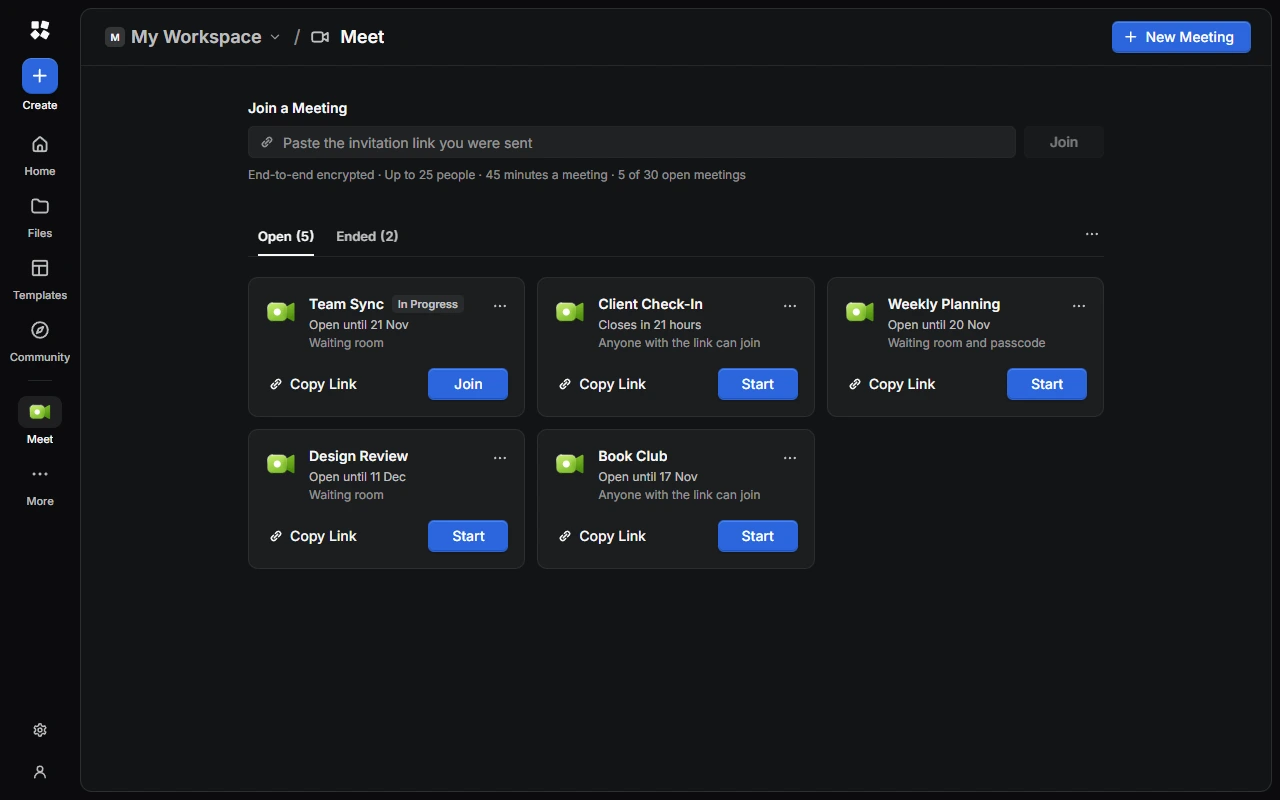
About
Meet is for video meetings with up to 25 people. Calls are end-to-end encrypted, so only the people in a meeting can see, hear or read what's shared in it. Nobody at CYC Studio can.
- Hosting needs an account. Sign in to CYC Studio Cloud to make meetings.
- Joining doesn't. Anyone with a meeting's invitation link can join, with or without an account.
- Only people you invite can join. Each meeting has its own invitation link. A host can also make people wait to be let in, or ask for a passcode.
Open Meet
In the rail, choose More, then Meet. On a phone, tap More in the bar at the bottom of the screen. You can also press Ctrl + K to open the Command Palette and search for Meet, or choose Create › Meeting to make one straight away.
If you aren't signed in, Meet shows Sign in to host meetings, and you can still use Join with a Link. If it shows Unlock to see your meetings, choose Unlock. Meeting names and invitation keys are end-to-end encrypted, so each device needs unlocking once to show them.
Your meetings
To join a meeting someone sent you, paste its link into Join a Meeting at the top and choose Join. Underneath, you can see Meet's limits and how many open meetings you have.
Your meetings are under Open and Ended. Each open meeting shows how long it stays open and who can get in, such as Waiting room and passcode. Meetings that are going on now are marked In Progress.
- Start opens a meeting, or Join if it's in progress.
- Copy Link copies its invitation link to send.
- The ⋯ menu has Invitation Link…, End Meeting… and Delete…. Ended meetings only have Delete….
Choose View Options (the ⋯ next to the tabs) to show your meetings as a Grid or a List, and sort them by Newest First, Oldest First or Name. On the Open tab, you can also show only meetings that are In Progress or Not Started.
The list updates by itself on all your devices. Ended meetings are removed a day after they end.
Meet settings
Go to Settings › Meet. It has four pages:
- Microphone and Speaker: pick your Microphone and Speaker, and turn Noise Suppression on or off. Under Test Your Microphone, choose Start Test to hear yourself live, using headphones so it doesn't echo. Under Test Your Speaker, choose Play a Test Sound. Meeting Sounds plays a sound when you mute, unmute or share, and when people join or leave. Some browsers don't let you pick a speaker.
- Camera: pick your Camera, and choose Show Preview under Camera Preview to see how you look.
- In Meetings: how meetings look on this device, such as the Layout, Auto-Hide Controls and the accessibility options. You can change these during a meeting too.
- When You Host: what the meetings you make start with. Under Joining, choose Waiting Room, Require Passcode and a Default Passcode. Leave Default Passcode empty to get a new random passcode each time, which is safer. Under What Guests Can Do, choose whether Everyone or Hosts Only can chat, unmute, use a camera and share a screen, and turn Reactions and Private Messages to Hosts on or off. You need to be signed in to use this page.
Your choices are used every time you join a meeting on that device. In a meeting, choose More Options › Meet Settings… to get here.
Keyboard shortcuts
In a meeting:
| Action | Shortcut |
|---|---|
| Mute or unmute | M |
| Talk while you're muted | Hold Space |
| Turn your camera on or off | V |
| Share your screen, or stop sharing | S |
| Present a file | W |
| Previous or next slide | ← / → |
| Reactions | R |
| Raise or lower your hand | Y |
| Chat or People | C or P |
| Your notes | N |
| Meeting Info | I |
| Host Controls (hosts and co-hosts) | H |
| Show all shortcuts | ? |
Shortcuts pause while you're typing or have a file open to present. In the chat, press Enter to send and Shift + Enter for a new line.
Limits
A meeting can have up to 25 people, and there's always room for its host. Each call lasts up to 45 minutes, and you can start it again from the same link. You can have up to 30 open meetings, and host up to 4 at once. Each meeting has one invitation link, which works until the meeting's invitation runs out.
Next steps
Last updated on 14 November 2026