Get started with Palette
Generate colour palettes in a tap, and save the ones you love
About
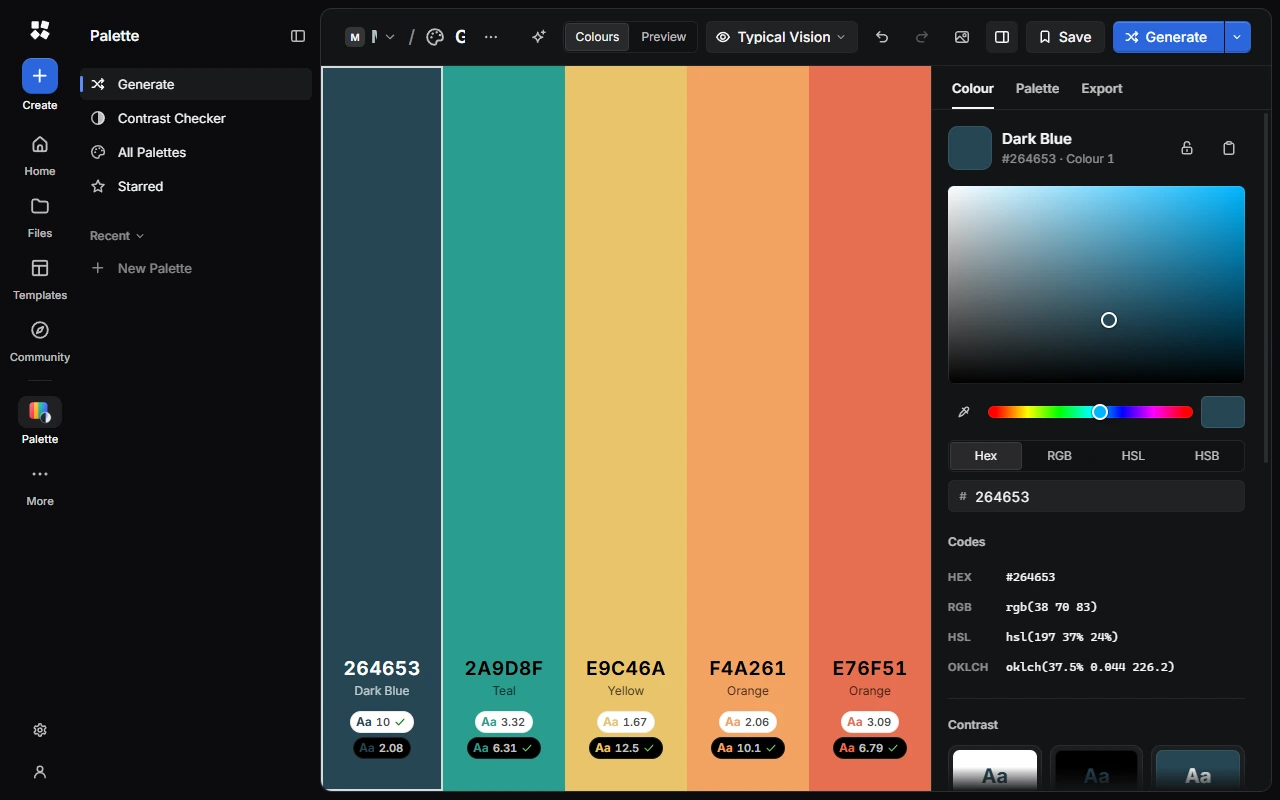
Palette makes colour palettes, checks that text is easy to read, and shows how colours look with colour blindness. It works without an account.
Generate a palette
Press Space, or choose Generate, for a new set of colours.
- Lock a colour you like to keep it next time. When every colour is locked, unlock one to make new colours.
- Choose the arrow next to Generate to pick a Harmony, such as Analogous, Complementary, Triadic or Monochrome.
- Drag colours to reorder them. A palette can have 2 to 10 colours.
- Colours from a Picture… takes a palette from an image. You can also paste or drop a picture, or paste a list of hex codes.
Use Undo and Redo to go back to colours you liked.
Change a colour
Open a colour's More menu to:
- Copy As HEX, RGB, HSL or OKLCH.
- Check Contrast in the Contrast Checker.
- Move Left or Move Right.
- Duplicate it, Add a Colour After it, or Remove it.
Save a palette
Choose Save, give the palette a name, and choose Save. After that, changes save automatically. Find your palettes in All Palettes and Starred, with the newest under Recent.
The page's menu can also Copy Hex Codes for the whole palette, or Start a New Palette.
Settings
In Settings › Palette, choose:
- Colours in a New Palette, from 3 to 8.
- The Harmony new colours use. Auto picks a different one each time.
- The Copy Format for copied colours.
- Show APCA Scores, a newer contrast score shown next to the usual WCAG ratios.
Next steps
Last updated on 14 November 2026