Get started with Notes
Create notes from scratch or a template, and organise them with folders, pins, colours and stars
About
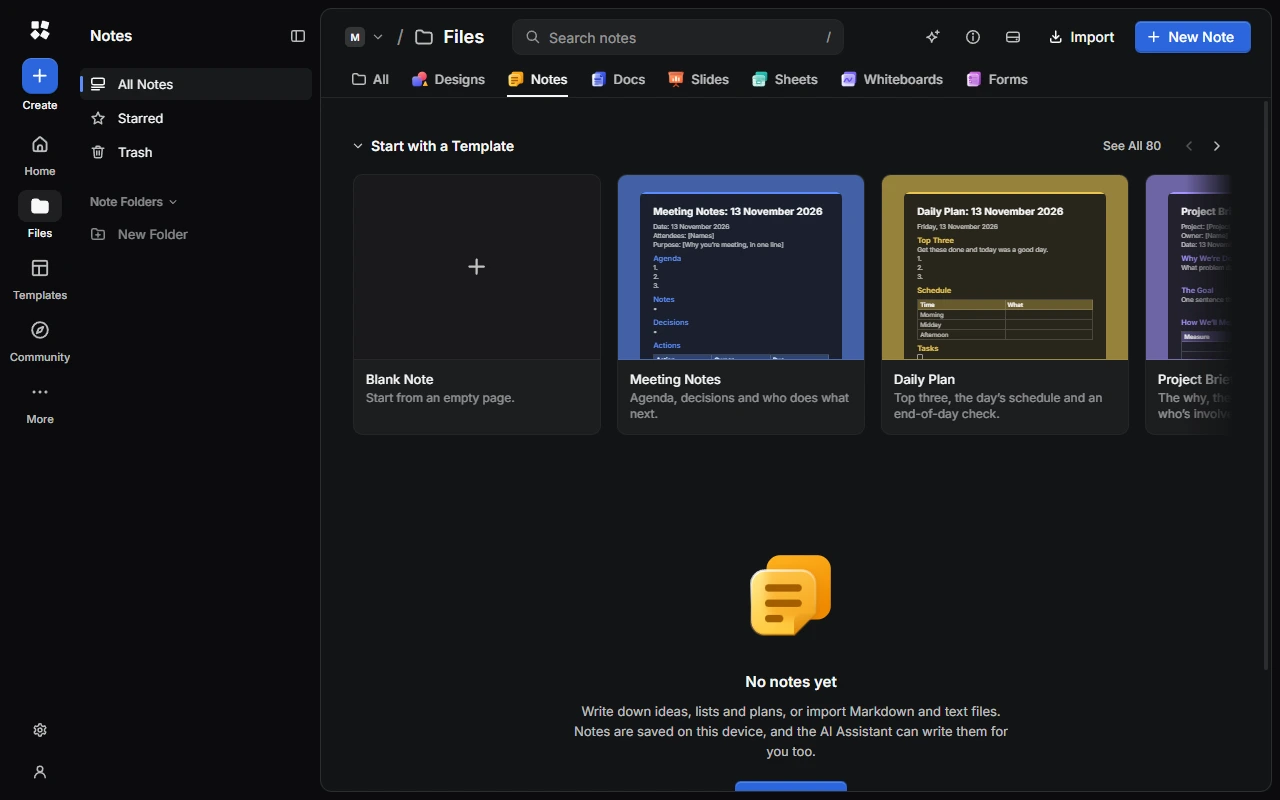
Use Notes for briefs, plans and lists. Notes format as you type and can be read aloud, and you can write in one with other people in real time. They're saved on your device.
Create a note
- Choose New Note for a blank note.
- Or choose a template under Start with a Template, or See All. Templates such as Meeting Notes and Daily Plan put today's date in the title.
- From anywhere, choose Create › Note to search the note templates.
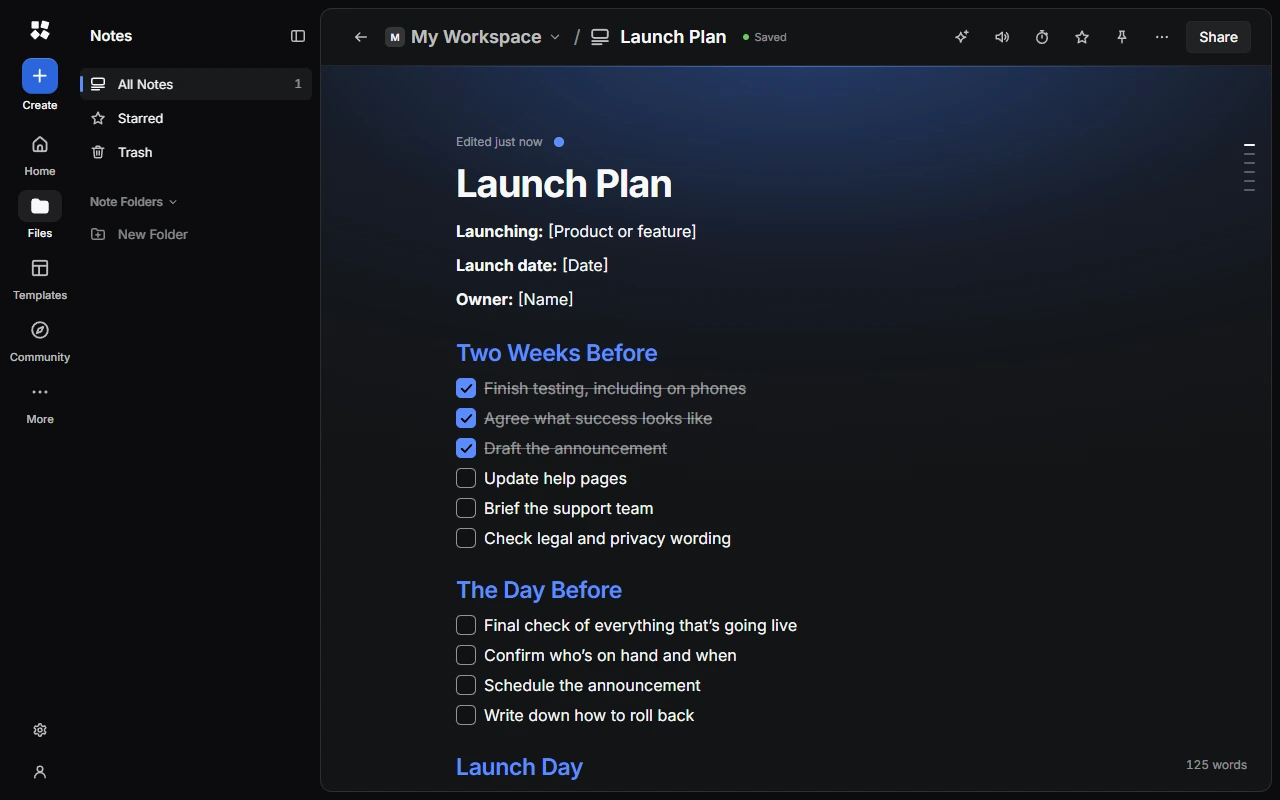
Give the note a title and start writing. See Write and format notes.
Organise your notes
The sidebar has All Notes, Starred, Trash and your Note Folders. Pinned notes appear first in the list.
Open a note's ⋯ menu, or right-click it, to:
- Star it, or Pin to Top.
- Give it a Colour.
- Rename… or Duplicate it.
- Move to Folder… or Move to Workspace….
- Copy it as text or download it as a Markdown file, from Export.
- Move to Trash. You can Undo straight away, or restore it from Trash later.
You can also drag notes onto Starred, Trash or a folder.
Note folders
Under Note Folders, choose New Folder, give it a name, icon and colour, then choose Create Folder. To change or remove a folder, open it and use its menu. Deleting a folder moves its notes back to All Notes. No notes are deleted.
Change how notes are listed
Sort notes by Last Edited, Date Created or Title, and show them in a Grid or a List, with or without previews. Set the defaults in Settings › Notes › Notes List.
Saving
Notes save on your device as you type. The status next to the title shows Saved. Point at it to see the word count.
Next steps
Last updated on 13 November 2026