Get started with Sheets
Create spreadsheets from scratch or a starter, import Excel and CSV files, and export your work
About
Sheets is for budgets, plans and lists. It has formulas, filters and conditional formatting, and opens and saves Excel and CSV files.
Create a sheet
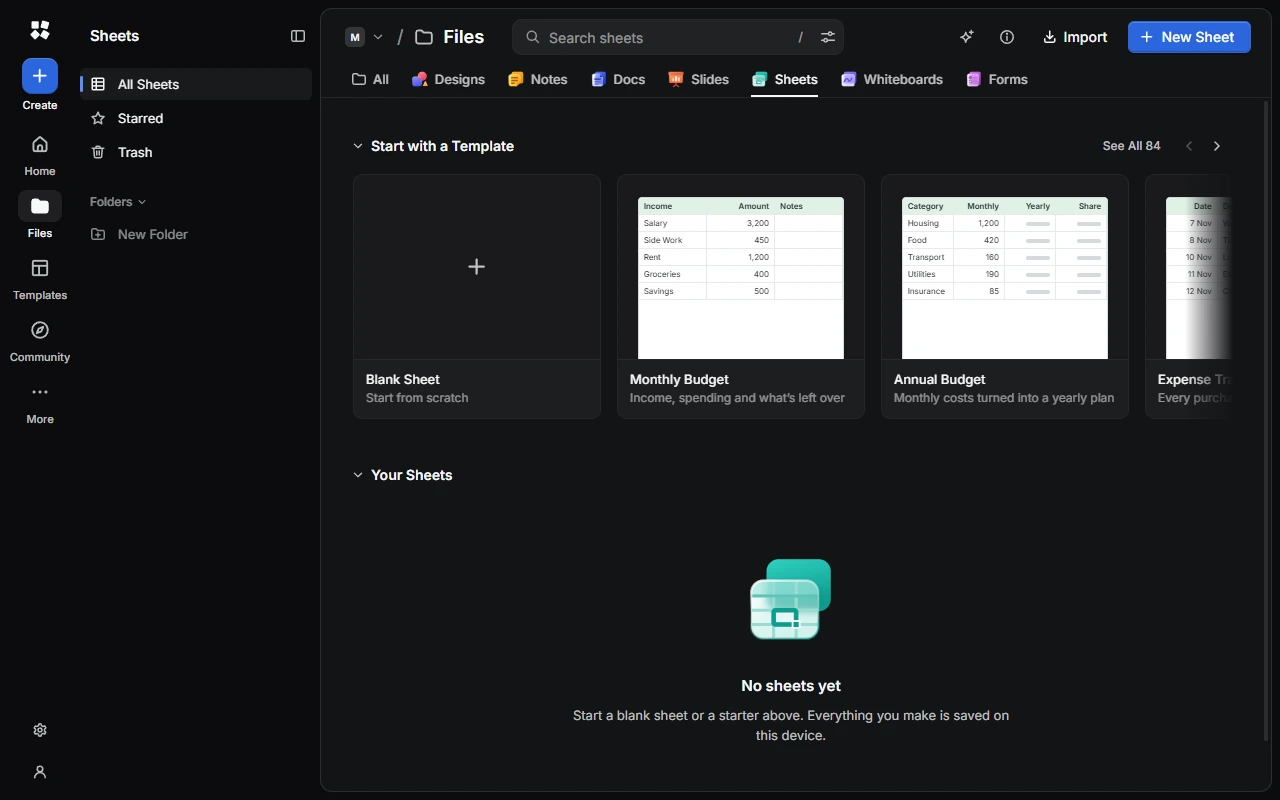
- Choose New Sheet for a blank sheet called "Untitled Sheet", with one tab called "Sheet1".
- Or choose a starter under Start with a Template, or See All. Starters cover money, business, projects, time, people, marketing, stock, learning and home, such as Monthly Budget, Invoice, Project Tracker, Timesheet, Grade Book and Meal Planner.
- From anywhere, choose Create › Sheet.
Import Excel and CSV files
Choose Import in Sheets, or drag a file onto the page. You can import .xlsx, .xlsm, .csv and .tsv files up to 64 MB, and .cyc-studio files. Each one becomes a new sheet.
To add the tabs from a file to the sheet you're in, choose More › Import Sheets….
Older .xls files and password-protected files can't be imported. Save them as .xlsx first. If a formula uses something Sheets can't calculate, it keeps the value it had.
Export
Choose More › Export:
- Download Spreadsheet (.xlsx) saves every tab, with its formatting, merged cells, frozen rows and columns, tab colours, filters, conditional formatting and images.
- Download This Sheet as CSV (.csv) saves the tab you're on.
Sheets doesn't print. To print a sheet, export it and print it from another app.
Find your way around
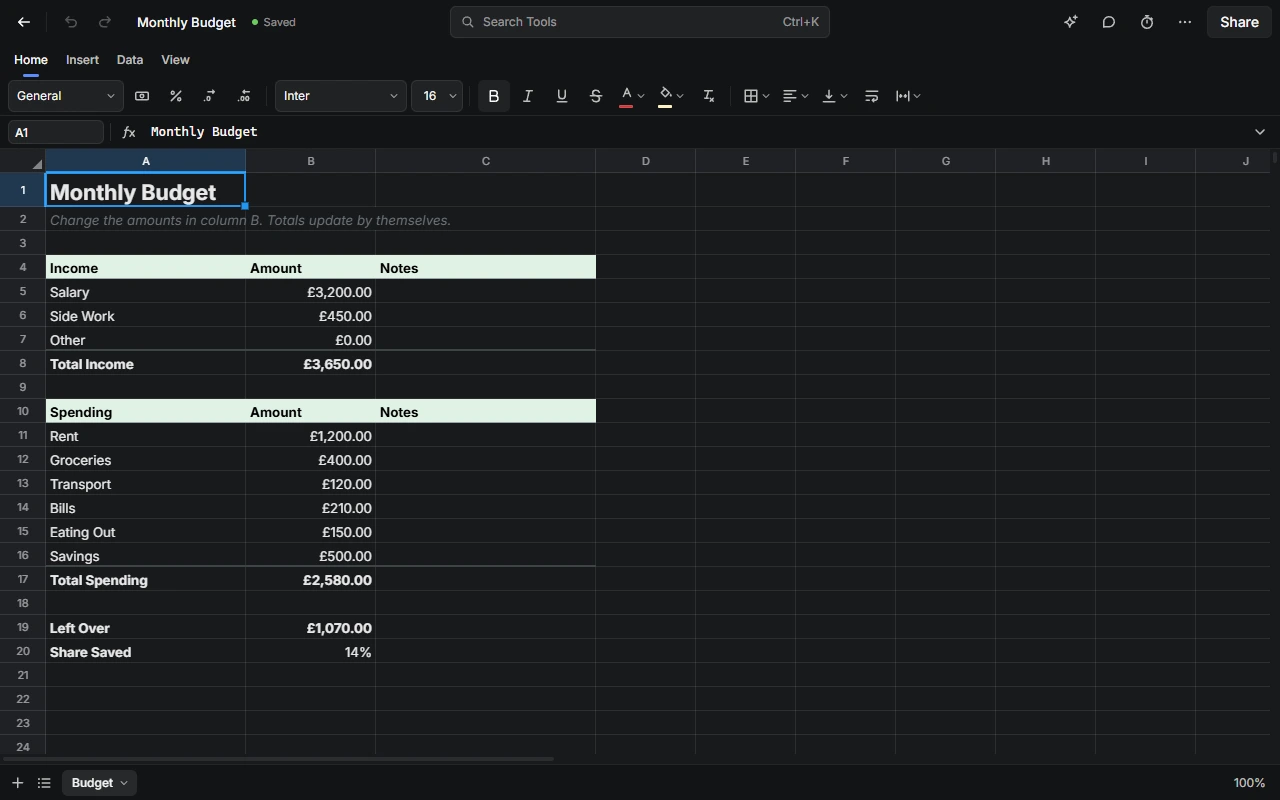
- Top bar: go back to your sheets, undo and redo, rename the sheet, and find any tool with Search Tools (Ctrl + K). On the right are the AI Assistant, Comments, More and Share.
- Toolbar: the Home, Insert, Data and View tabs.
- Formula bar: the Name Box, which shows the selected cell, Insert Function and the formula you're writing.
- The grid, with its tabs at the bottom.
- Status bar: the Sum, Average and Count of the selected cells, and the zoom.
Tabs
A sheet can have up to 100 tabs. Choose Add Sheet (+) to add one, or All Sheets to jump to one. Right-click a tab, or use its menu, to rename, duplicate, colour, move or delete it. Double-click a tab to rename it, and drag tabs to reorder them.
Deleting a tab doesn't ask first. If you delete one by mistake, press Ctrl + Z.
Organise your sheets
The sidebar has All Sheets, Starred, Trash and your Folders. See Home and Files.
Next steps
Last updated on 13 November 2026