Home and Files
Create new work, find it again, and keep it organised with folders, stars and the trash
Getting around
The rail on the left of every page takes you anywhere in CYC Studio:
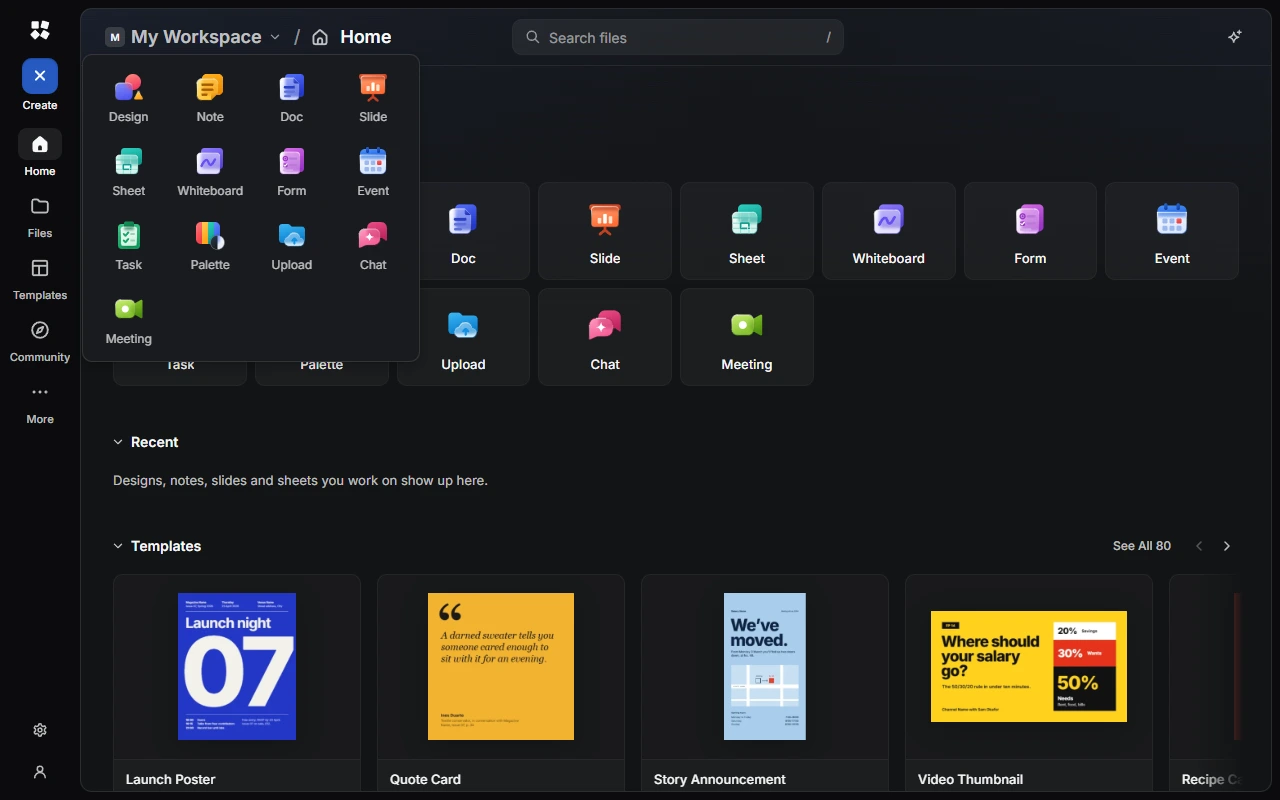
- Create makes something new. Choose from Design, Note, Doc, Slide, Sheet, Whiteboard, Form, Event, Task, Palette, Upload, Chat or Meeting.
- Home shows a greeting, tiles for creating, your recent work and templates.
- Files lists everything you've made.
- Templates opens the template gallery.
- Community shows work other people have published.
- More opens Drive, Calendar, Tasks, Palette, Meet and AI Chat.
- At the bottom are Settings and your account, or Sign In if you aren't signed in. When you're signed in, the bell shows your notifications.
On a phone, the rail becomes a bar at the bottom of the screen with Home, Files, Create, AI Chat and More.
Files
Files brings together everything you make in Design, Notes, Docs, Slides, Sheets, Whiteboards and Forms. Use the tabs at the top to see one kind at a time.
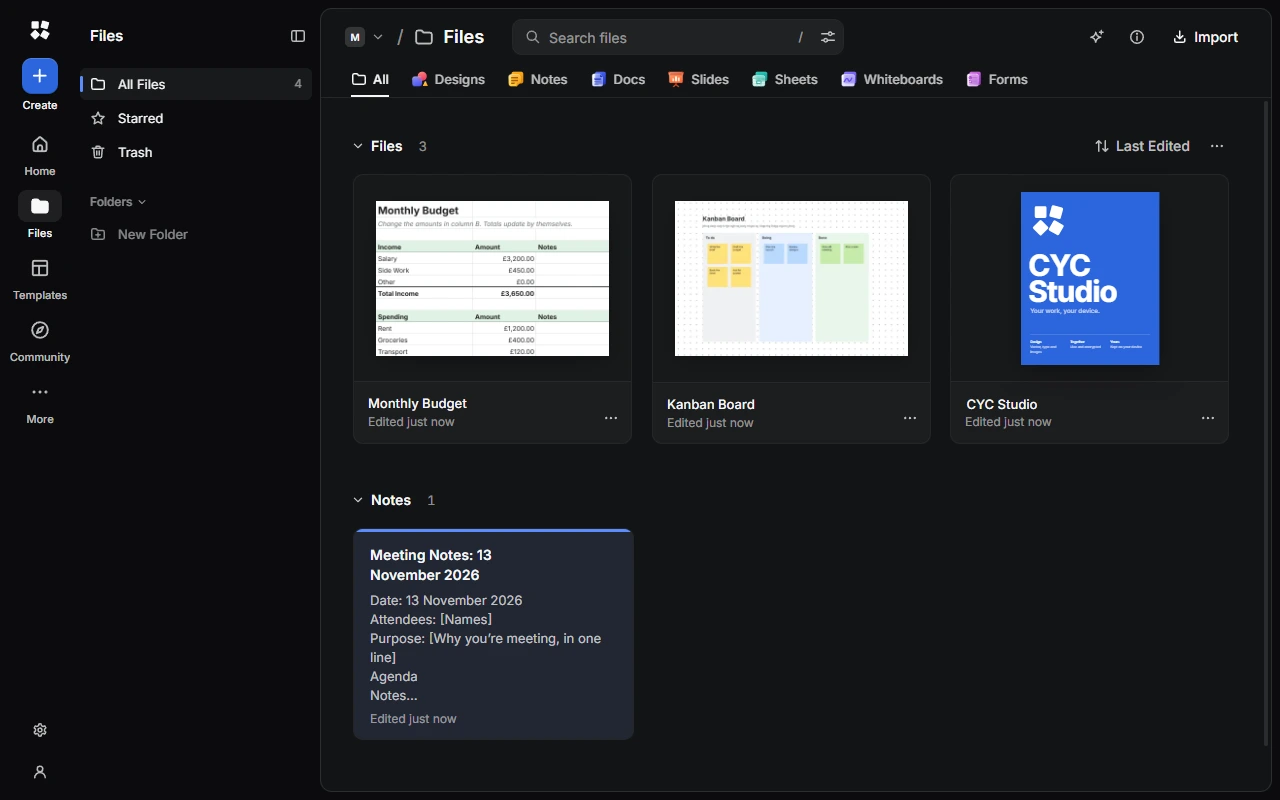
The sidebar has All Files, Starred, Trash and your Folders. The Storage meter at the bottom shows how much space your work uses. Press Ctrl + Shift + S to hide or show the sidebar.
Change how files are shown
- Sort: choose Last Edited, Date Created or Name.
- View Options: show files in a Grid or a List, turn thumbnails on or off, or show only what you edited in the last 7 or 30 days.
Organise your work
Open the ⋯ menu on a file, or right-click it, to:
- Star it, so it appears in Starred.
- Rename… or Duplicate it. A duplicate is called "name copy".
- Move to Folder… or Move to Workspace….
- Download .cyc-studio File.
- Move to Trash.
To work with several files at once, choose Select from the menu, then pick the others. The bar at the bottom lets you star, move or trash them all together.
Folders
Create a folder
In the sidebar, under Folders, choose New Folder.
Name it
Enter a name, and choose an icon and a colour if you like.
Save it
Choose Create Folder. Drag files onto the folder, or use Move to Folder….
To change or remove a folder, open its ⋯ menu in the sidebar, or right-click it: Edit Folder…, Move to Workspace… or Delete Folder…. Deleting a folder doesn't delete what's in it. Its files move back to your main list.
Notes keep their own folders, shown under Note Folders.
The trash
When you move something to the trash, you can choose Undo straight away. Open Trash to Restore something or Delete Forever…. Choose Empty Trash to delete everything in it. Files stay in the trash until you delete them yourself.
Search
Use the search box at the top of the page, or press / to jump to it. Suggestions appear as you type. Choose Show All Results for everything that matches, or Advanced Search to filter the results.
The Command Palette
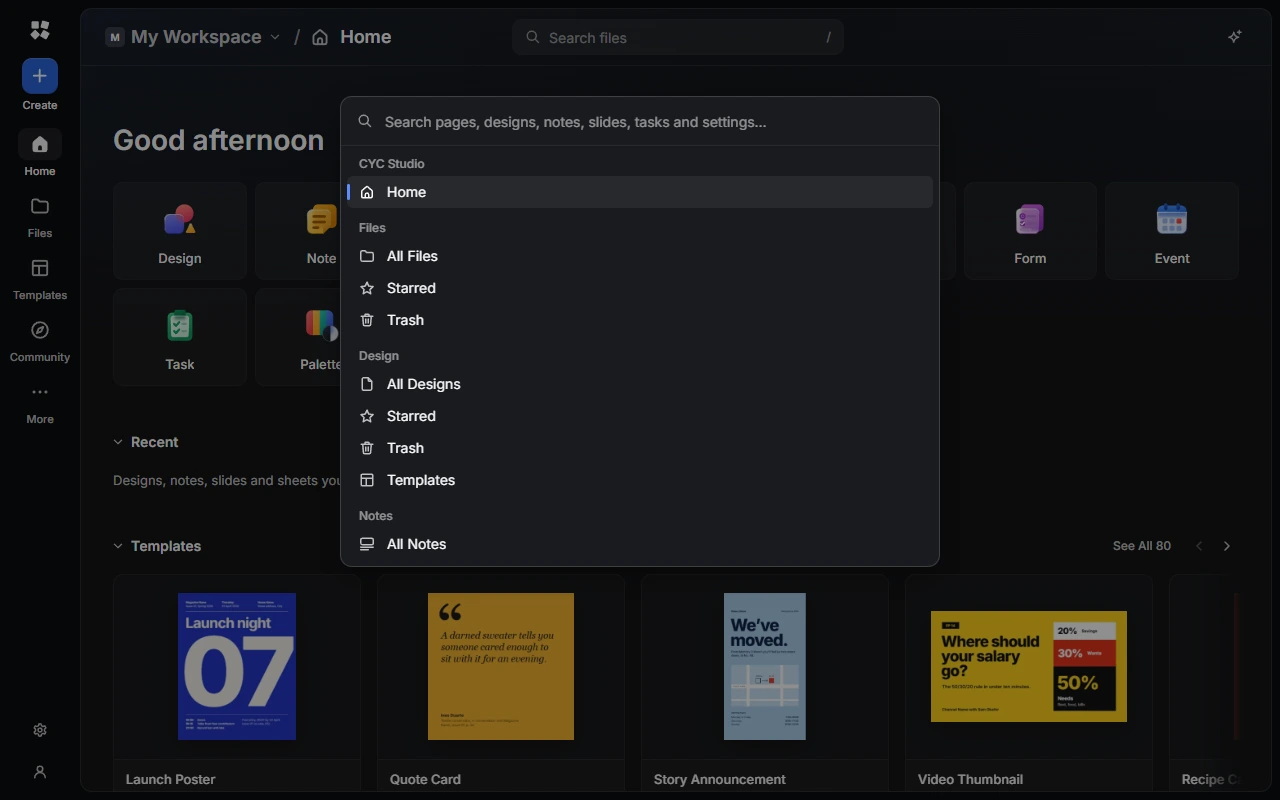
Press Ctrl + K to open the Command Palette. Type to find any page, folder, setting or file by name, or to run a command such as New Design…, New Folder…, Ask AI Assistant or Switch to Dark Theme.
Templates
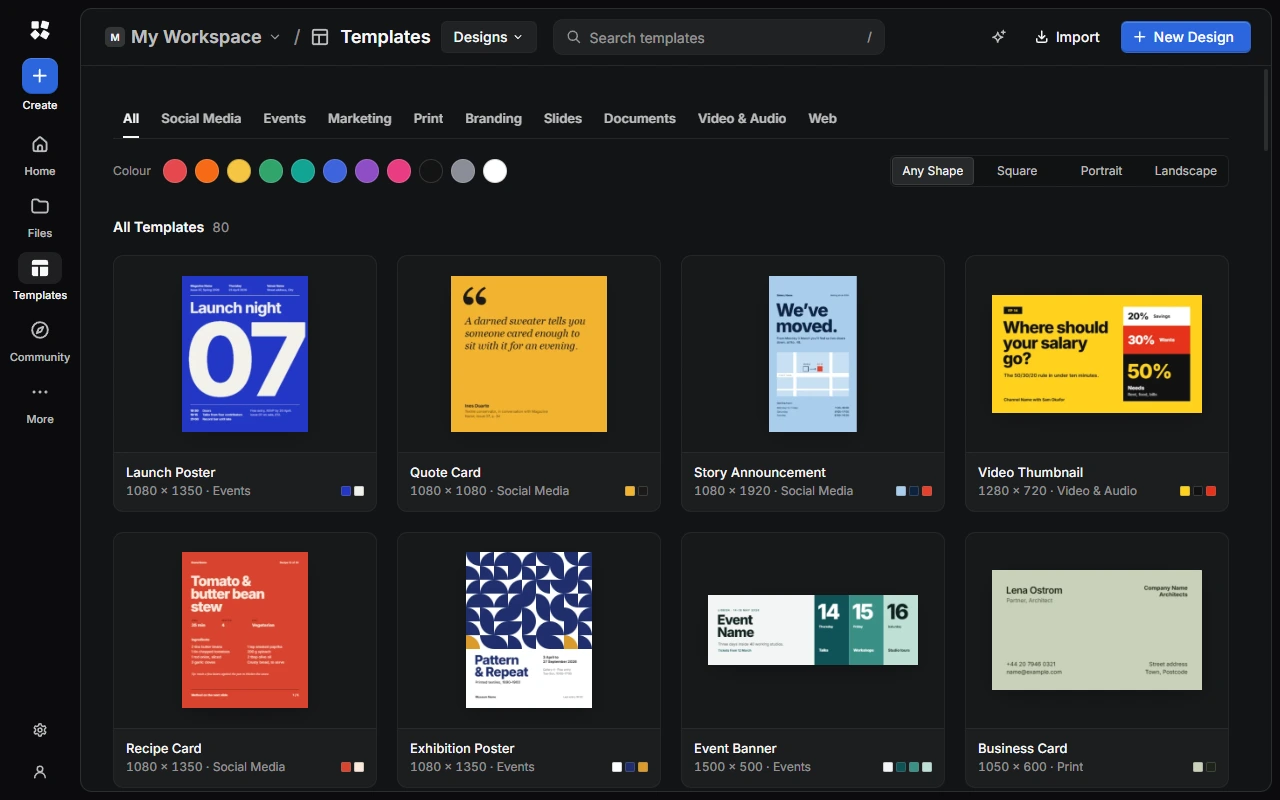
Choose Templates in the rail to browse templates for designs, notes, docs, slides, sheets, whiteboards and forms. Use the menu next to the title to switch between them. Choosing a template makes a new file from it and opens it.
Last updated on 14 November 2026