Welcome to CYC Studio
Open CYC Studio for the first time, choose your theme, and learn where your work is saved
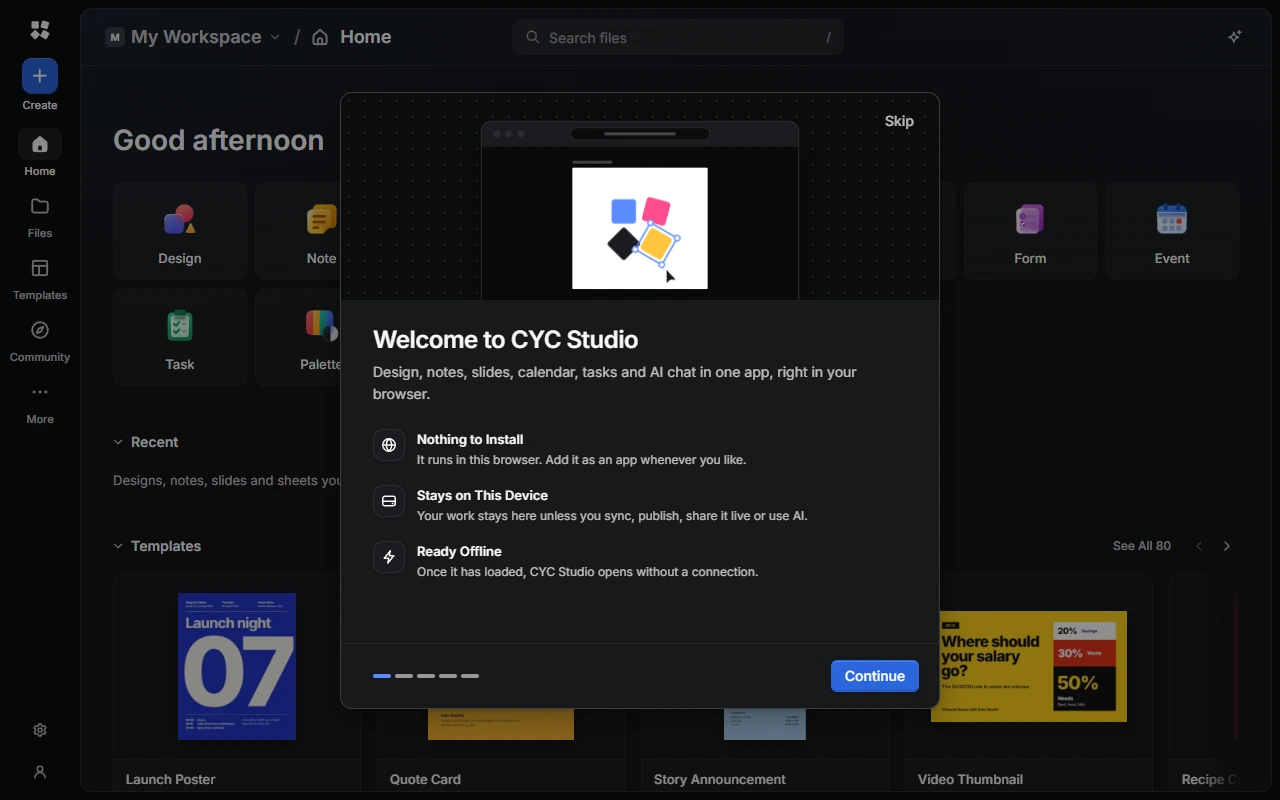
Open CYC Studio
- In a browser: go to app.cycstudioapp.com. CYC Studio works in current versions of Chrome, Edge, Firefox and Safari, with a mouse, pen or touch.
- On Windows: install CYC Studio from the Microsoft Store. See CYC Studio for Windows for what the app adds.
You don't need an account. Everything works on your device, and you can create a CYC Studio Cloud account later if you want to sync between devices, use Drive or Forms, share a workspace, publish to Community or use CYC Studio AI.
The introduction
The first time you open CYC Studio, a short introduction walks you through the basics:
- Welcome to CYC Studio explains that there's nothing to install, your work stays on this device and CYC Studio is ready offline.
- Make It Yours lets you choose a Theme (System, Dark or Light) and an Accent Colour.
- The Essentials shows the library and folders, the tools, the Command Palette and exporting.
- Design with AI introduces the AI Assistant. Turn off Show the Assistant if you'd rather not see it.
- Start Your First Design offers a few sizes and templates to start from, or choose Explore on My Own.
Use Continue and Back to move between steps, or Skip to close the introduction. You can also press Esc to skip it.
To see it again, go to Settings › General › Help and Reset and choose Show Introduction.
Where your work is saved
Everything you make is saved on your device as you work: in your browser's storage, or in the Windows app's own folder. Your browser and the Windows app keep separate copies, so work you make in one doesn't appear in the other unless you sync it or move it with a backup.
Once CYC Studio has loaded, it keeps working without an internet connection. Live sessions, the AI Assistant and AI Chat need a connection.
Clearing your browser's data for CYC Studio deletes the work saved in it. Download a backup from Settings › Storage first, or sign in and sync your work. See Settings.
Choose what opens first
In a browser, CYC Studio opens on Home. To pick a product or a workspace each time instead, go to Settings › General › Startup and turn on Choose a Product on Startup or Choose a Workspace on Startup. The Windows app reopens your tabs instead. To change that, or to choose a workspace on startup, go to Settings › General › App › Startup and Closing.
Next steps
Last updated on 13 November 2026