Settings
Change how CYC Studio looks and sounds, and manage storage, backups and updates
Open Settings
Choose the gear at the bottom of the rail, or press Ctrl + ,. Settings opens on the section for the product you're using.
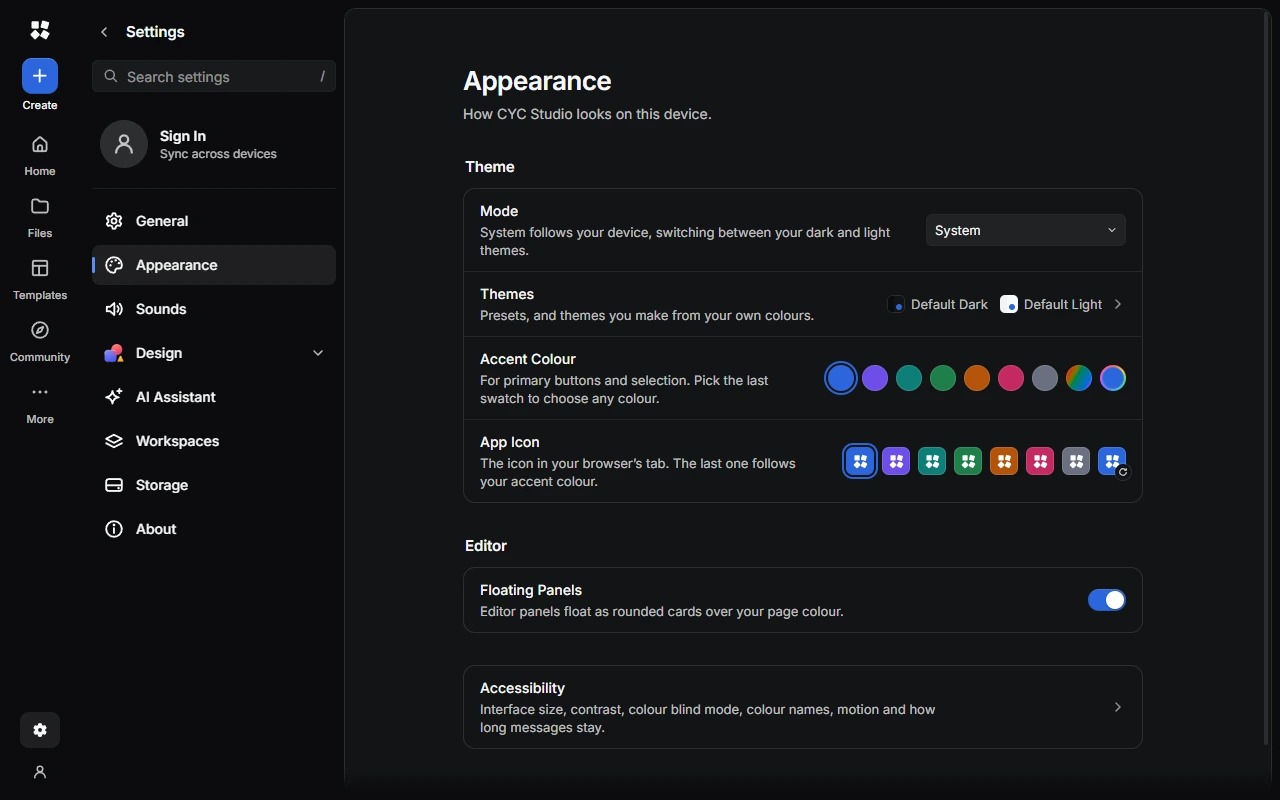
- Search settings finds any setting by name. Press Ctrl + F or / to jump to it.
- The list shows the product you're in. Choose Settings for Another Product to switch.
- Press Esc to clear the search, go back a page, then close Settings.
The sections are My Account (when you're signed in), General, Appearance, Sounds, the product you're in, AI Assistant, Workspaces, Storage and About.
Appearance
- Mode sets the theme to System, Dark or Light. System follows your device.
- Themes has dark and light presets, such as Black, Charcoal, Navy, White and Mint. Under Your Themes, choose New Theme to make your own with its own background, sidebar and accent colours.
- Accent Colour colours buttons and selections. Pick a swatch, Rainbow, or a custom colour.
- App Icon sets the colour of CYC Studio's icon in your browser tab or on Windows.
- Floating Panels shows editor panels as rounded cards over your page colour.
Accessibility settings, such as contrast, colour blind modes and motion, are under Settings › Appearance › Accessibility.
Sounds
Sound effects are off until you turn on Sound Effects. You can then set the volume and pitch, choose which effects play (such as clicks, messages, undo, AI replies and people joining a live session) and even use your own sound file for any of them. Restore Default Sounds puts everything back.
Storage and backups
Settings › Storage shows how much space CYC Studio uses on this device and what's using it.
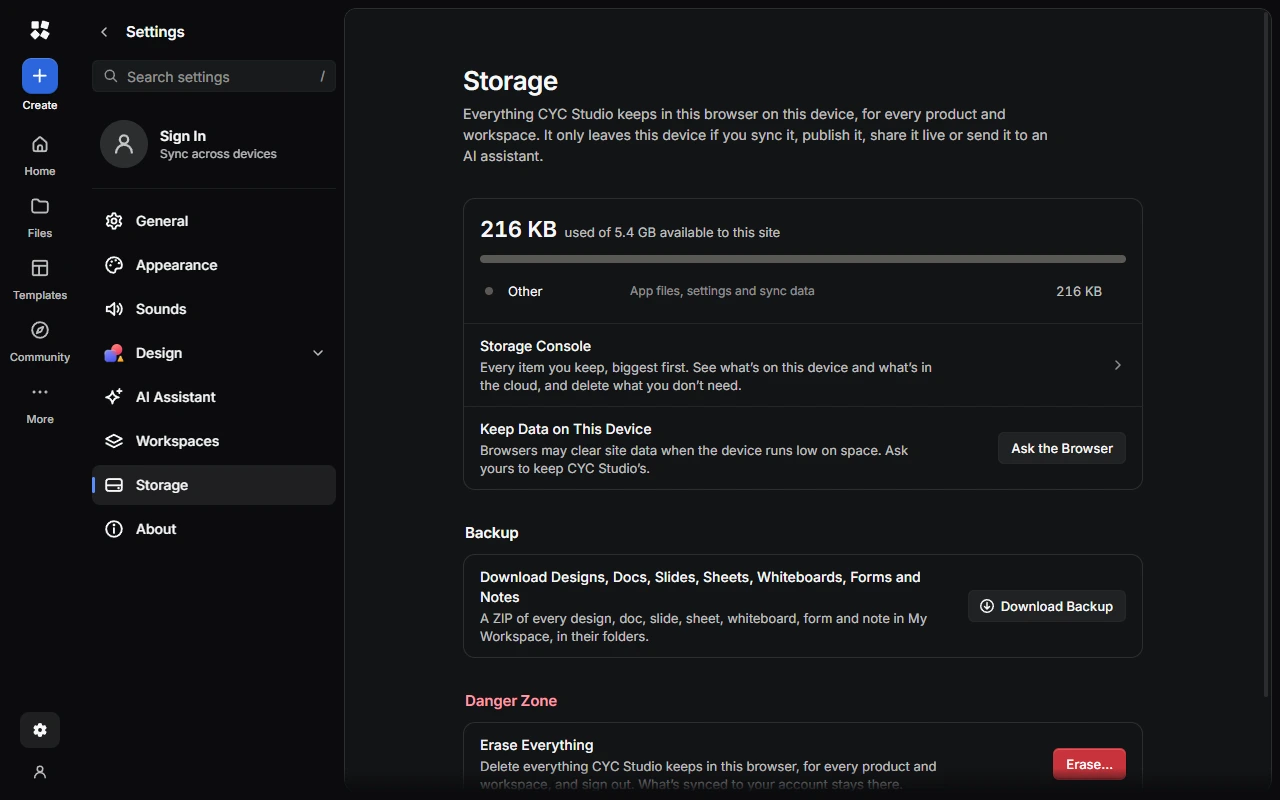
- Storage Console lists every item, biggest first.
- Keep Data on This Device asks your browser not to clear CYC Studio's data when your device runs low on space. Choose Ask the Browser.
- Clear Caches frees space in the Windows app without touching your work.
Download a backup
Under Backup, choose Download Backup. You get a ZIP file with every design, doc, slide, sheet, whiteboard, form and note in the current workspace, in their folders. If you've locked items with Windows Hello, it asks before adding them to the backup. Locked notes aren't included.
To bring work back from a backup, unzip it, then use Import in each product. Designs, docs, slides, sheets, whiteboards and forms are .cyc-studio files, and notes are Markdown files you import in Notes.
Erase everything
Danger Zone › Erase Everything deletes everything CYC Studio keeps on this device, for every product and workspace, and signs you out. You'll be asked to type "erase" to confirm. Anything synced to your account stays there.
Erasing can't be undone. Download a backup first.
General
- Startup (in a browser) lets you choose a product or a workspace each time CYC Studio opens.
- Help and Reset lets you see the introduction again, bring back warnings you've hidden, and Restore Default Settings.
- In the Windows app, App has settings for tabs, startup, the Quick Bar and Windows Hello. See CYC Studio for Windows.
About
About shows your version of CYC Studio and whether it's ready to use offline.
- Release Channel switches between Stable and Beta. Beta also adds Labs, with features that are still being tried out.
- In a browser, you can Install CYC Studio as a web app or download the Windows app.
- In the Windows app, updates install automatically through the Microsoft Store.
Product settings
Each product has its own section, such as Settings › Notes or Settings › Calendar. They're covered in each product's articles.
Last updated on 13 November 2026