Get started with Calendar
See your days, weeks and months at a glance, and jump to any date in a click
About
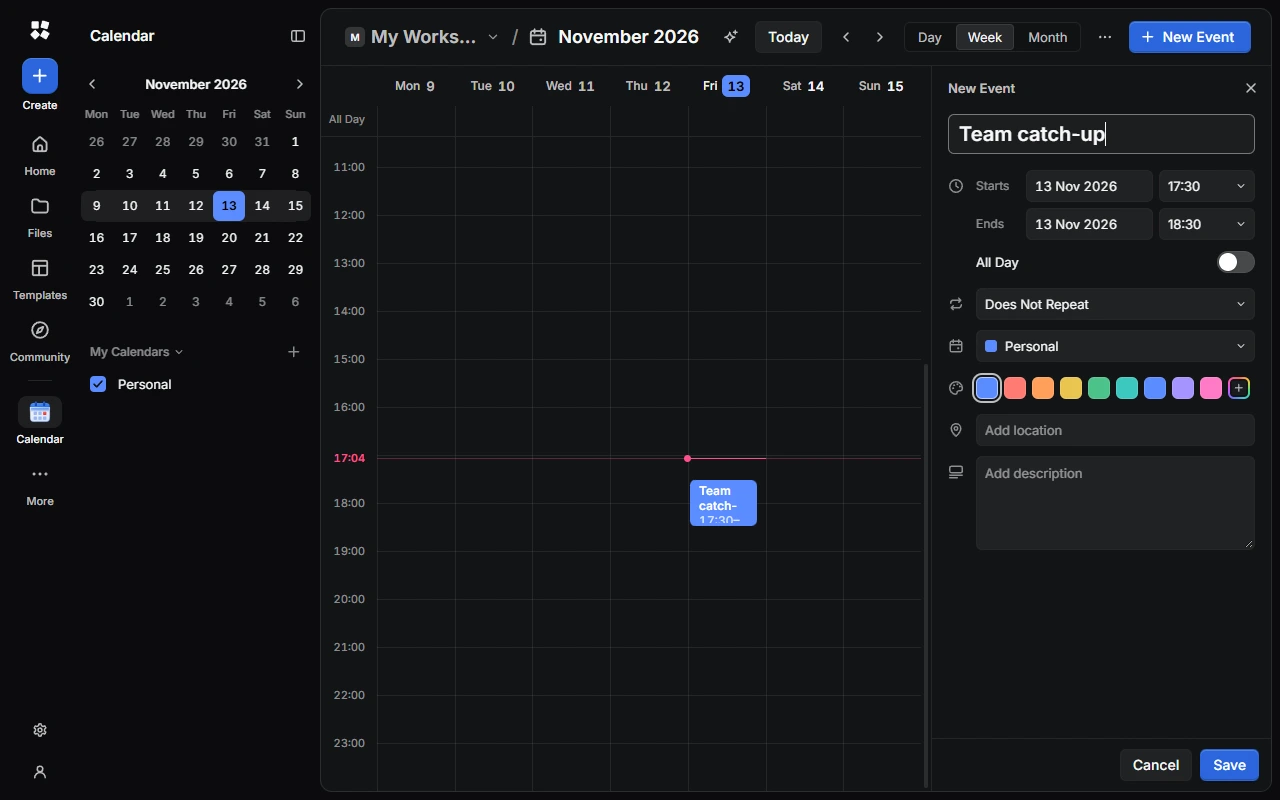
Calendar shows your events by day, week or month, with a coloured calendar for each part of your life. It works without an account, and if you sign in, it syncs with end-to-end encryption.
Find your way around
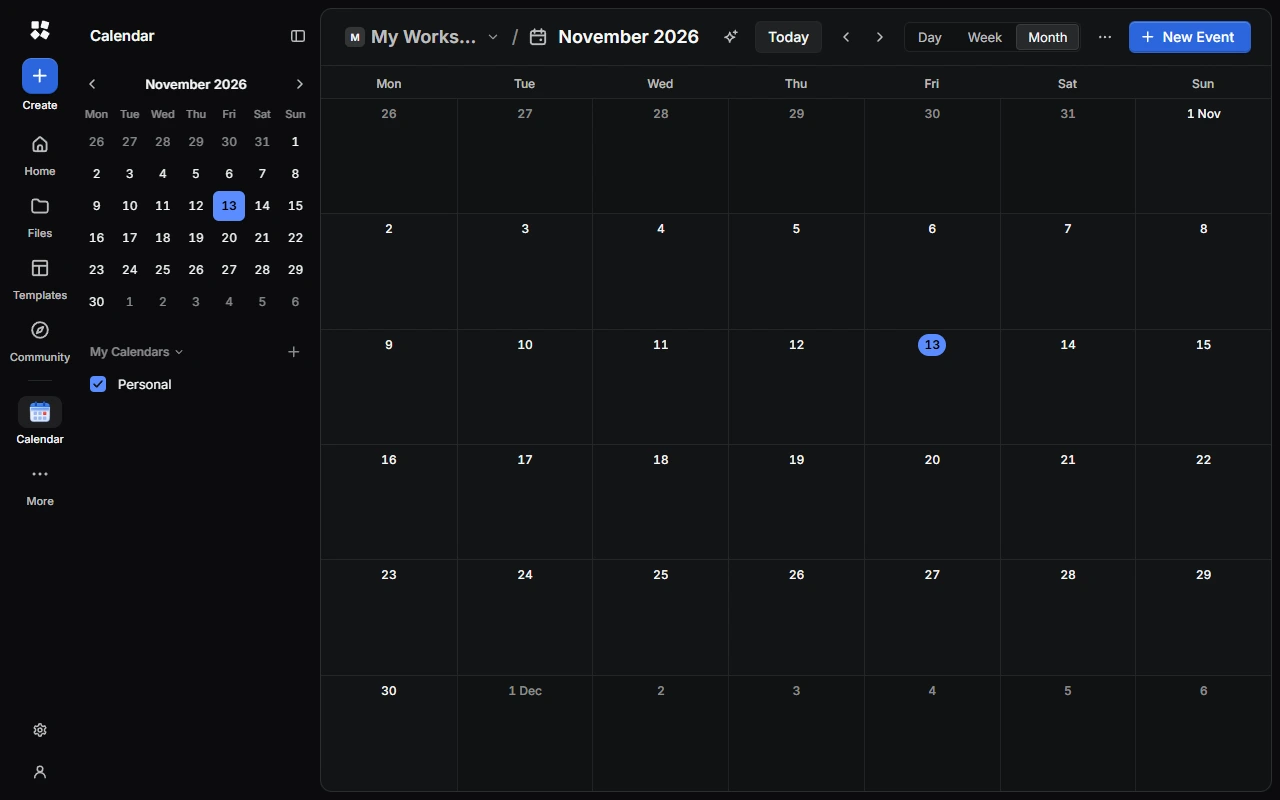
- Day, Week or Month switches the view. Calendar remembers the one you used last.
- The arrows move back and forward, and Today brings you back.
- Pick a date in the small calendar in the sidebar to jump straight to it.
- In the month view, click a date to open that day. If a day has more events than fit, click more to see them all.
View options
Open the ⋯ menu next to the views to Show Weekends, Show Week Numbers, or open Calendar Settings…. In a small window, choose the view's name, such as Week, to find the views and these options together.
Keyboard shortcuts
| Action | Shortcut |
|---|---|
| Day, week or month view | D, W or M |
| Today | T |
| Previous / next | ← / →, K / J or P / N |
| New event | C |
| Delete the open event | Delete |
| Close the event | Esc |
| Undo / redo | Ctrl + Z / Ctrl + Y |
Plan with the AI Assistant
Ask the AI Assistant to plan your week. It can find free time, add up to 50 events at once, move and change events, and make or tidy your calendars. It always asks before deleting anything.
In a workspace
In a workspace where you can only view, you can see its calendars and open events, but not change them.
Limits
You can have up to 100 calendars and 20,000 events. An event can last up to 400 days.
Next steps
Last updated on 14 November 2026