Get started with Whiteboards
Create a whiteboard from scratch or a template, and find your way around the canvas
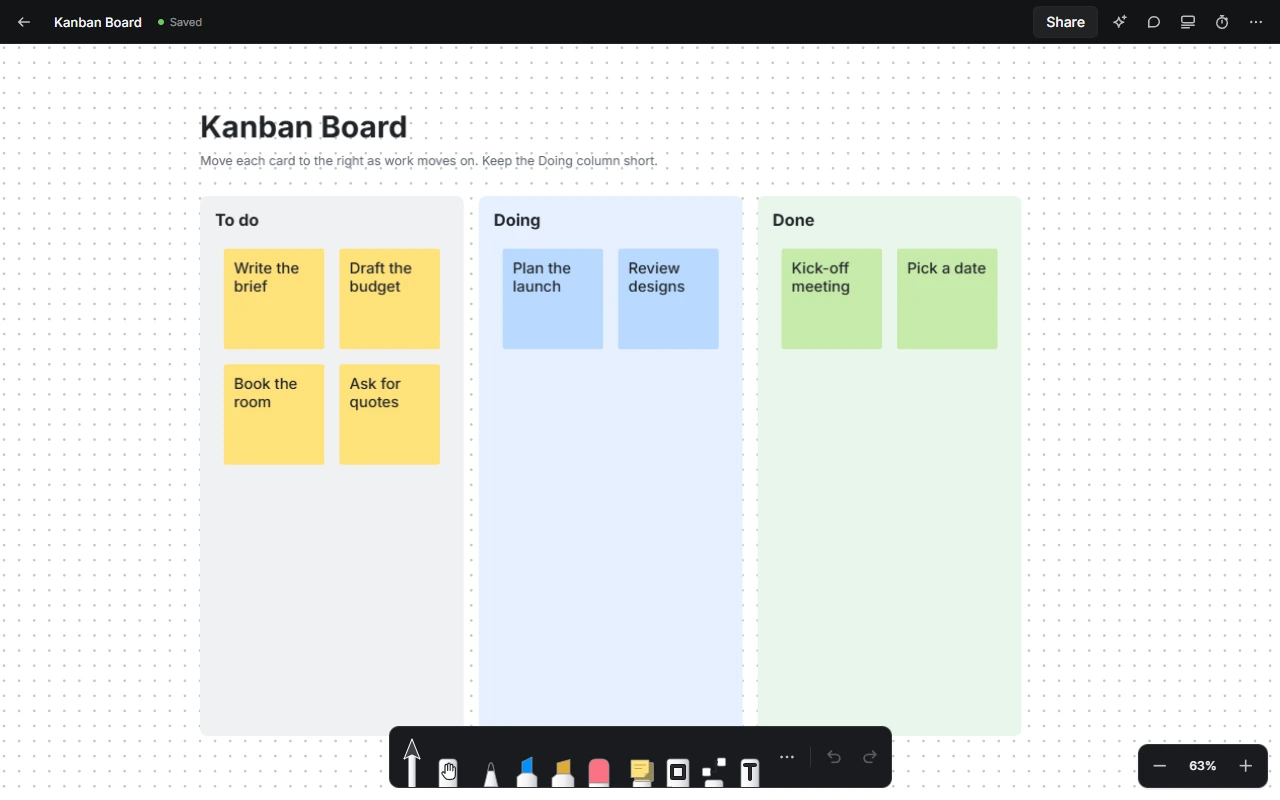
About
Whiteboards are for sketching ideas, mapping out plans and drawing diagrams, with smooth ink, sticky notes and connectors on a canvas with no edges.
Create a whiteboard
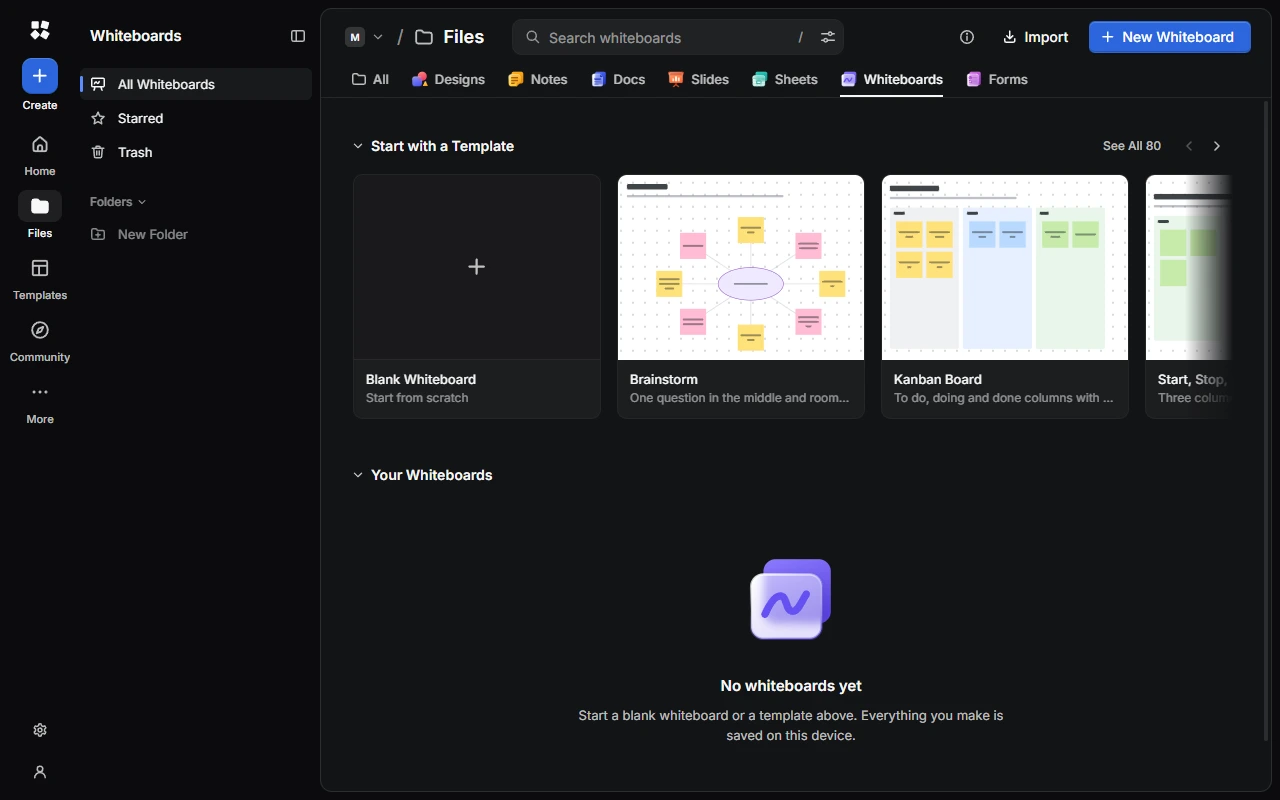
- Choose New Whiteboard for a blank board called "Untitled Whiteboard".
- Or choose a template under Start with a Template, or See All. There are templates for brainstorms, planning, meetings, retrospectives, strategy, research, diagrams, teaching and personal use, such as Kanban Board, Flowchart, Mind Map, SWOT Analysis and Org Chart.
- From anywhere, choose Create › Whiteboard.
Find your way around
- Top bar: go back to your whiteboards, rename the board, and find Share, the AI Assistant, Comments, Notes and More.
- Tools sit in the dock at the bottom of the screen. See Draw, write and add sticky notes.
- Zoom controls are in the corner.
Move around
- Pan: use the Hand tool (H), or hold Space and drag.
- Zoom: pinch, or hold Ctrl and scroll. You can zoom from 2% to 6,400%.
- Fit everything on screen: Shift + 1. Zoom to 100%: Shift + 0.
- Minimap: choose More › Minimap, or press Ctrl + Alt + M, for an overview of the whole board. Click it to move there.
- To jump to a frame, choose the zoom percentage, then Go to Frame.
- Hide everything but the board: press Ctrl + /. Choose Show Interface to bring it back.
Change the board's look
Choose More › Whiteboard Settings to change the background (such as White, Sky, Charcoal or Chalkboard, or your own colour), the pattern (dots, grid and many more), the pattern's size, and whether items snap to the grid.
In Settings › Whiteboards, choose the pattern and background new boards start with, and how drawing feels: smoothing, pen pressure, drawing with a pen only, and snapping shapes when you hold.
Organise your whiteboards
The sidebar has All Whiteboards, Starred, Trash and your Folders. To bring in a whiteboard, choose Import and pick a .cyc-studio file. See Home and Files.
Next steps
Last updated on 13 November 2026