Get started with Tasks
Add tasks in seconds with Smart Quick Add, and see what's due today or coming up
About
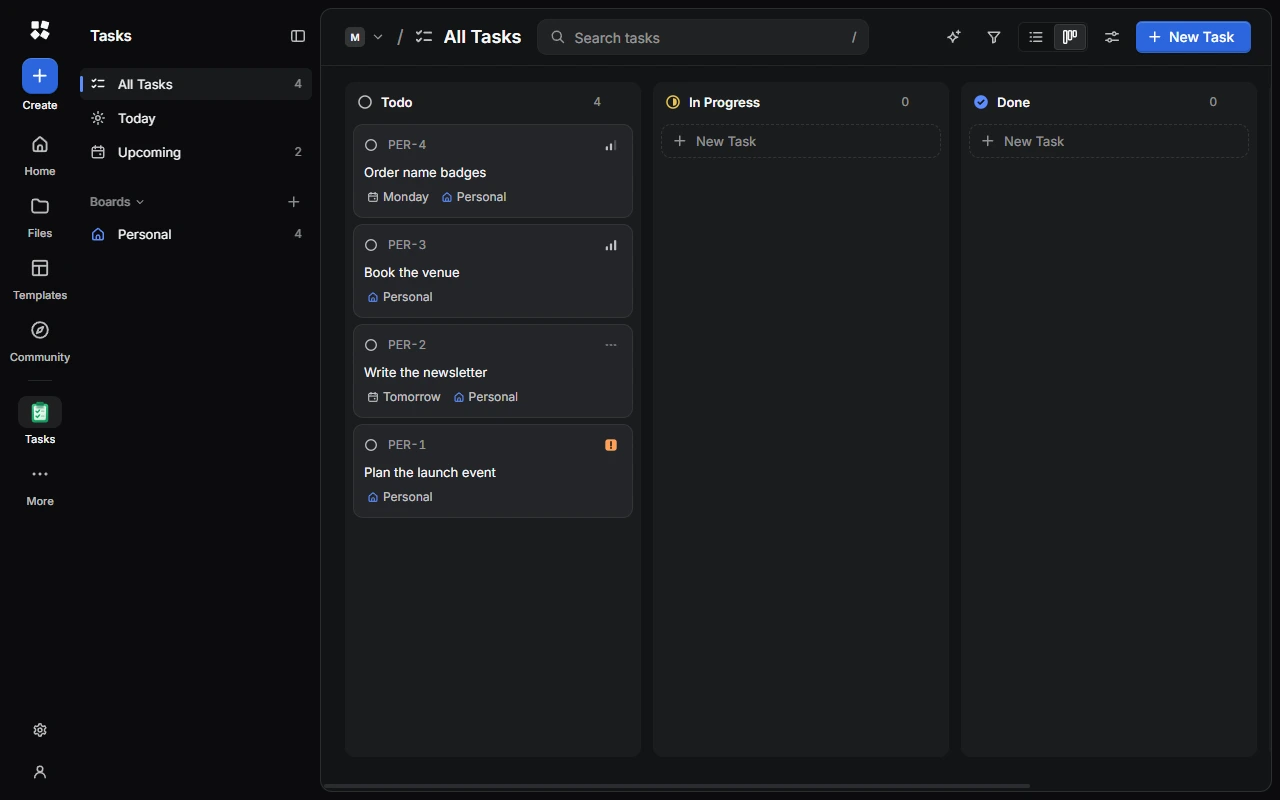
Tasks keeps your to-dos on boards, and gives each one a short ID, like PER-12. See everything at once, or just what's due Today or Upcoming. Tasks works without an account, and if you sign in, it syncs with end-to-end encryption.
Add a task
Choose New Task, or press C. Type what you need to do and press Enter. Keep typing to add the next one, and press Esc when you're done.
Smart Quick Add
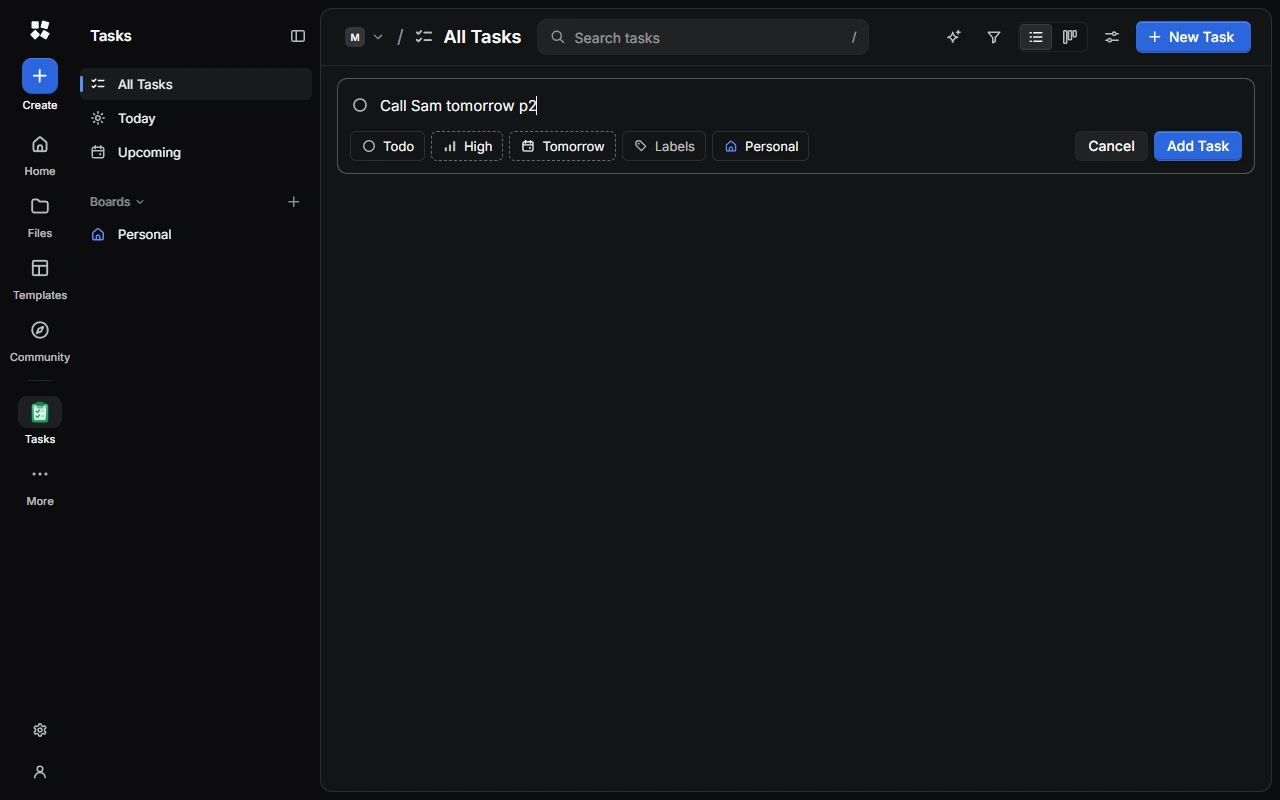
Type the due date, priority and labels as part of the task, such as "Call Sam tomorrow p2", and Tasks sets them for you.
| Type | To set |
|---|---|
today, tonight, tomorrow, next week, this weekend | The due date |
A day, such as friday or on fri | The next date that day falls on |
next and a day, such as next monday | A week after the coming one |
in 3 days, in 2 weeks | A date from today |
A date, such as 3 Nov or 2026-11-03 | That date |
p1, p2, p3, p4 | Urgent, High, Medium or Low priority |
# and a label's name | That label (for labels you've already made) |
What it recognises disappears from the title. Turn it off in Settings › Tasks › Smart Quick Add.
Keyboard shortcuts
| Action | Shortcut |
|---|---|
| New task | C |
| Move up / down | ↑ / ↓, or K / J |
| Select | X |
| Select all | Ctrl + A |
| Status, priority, due date | S, P, D |
| Labels, board, repeat | L, B, R |
| Delete | Delete |
| Undo / redo | Ctrl + Z / Ctrl + Shift + Z |
Plan with the AI Assistant
Ask the AI Assistant to plan a project or tidy your list. It can add, change and sort tasks for you, and it asks before deleting anything.
Next steps
Last updated on 13 November 2026