Get started with Drive
Keep your files and photos safe in end-to-end encrypted cloud storage, and reach them from any device
About
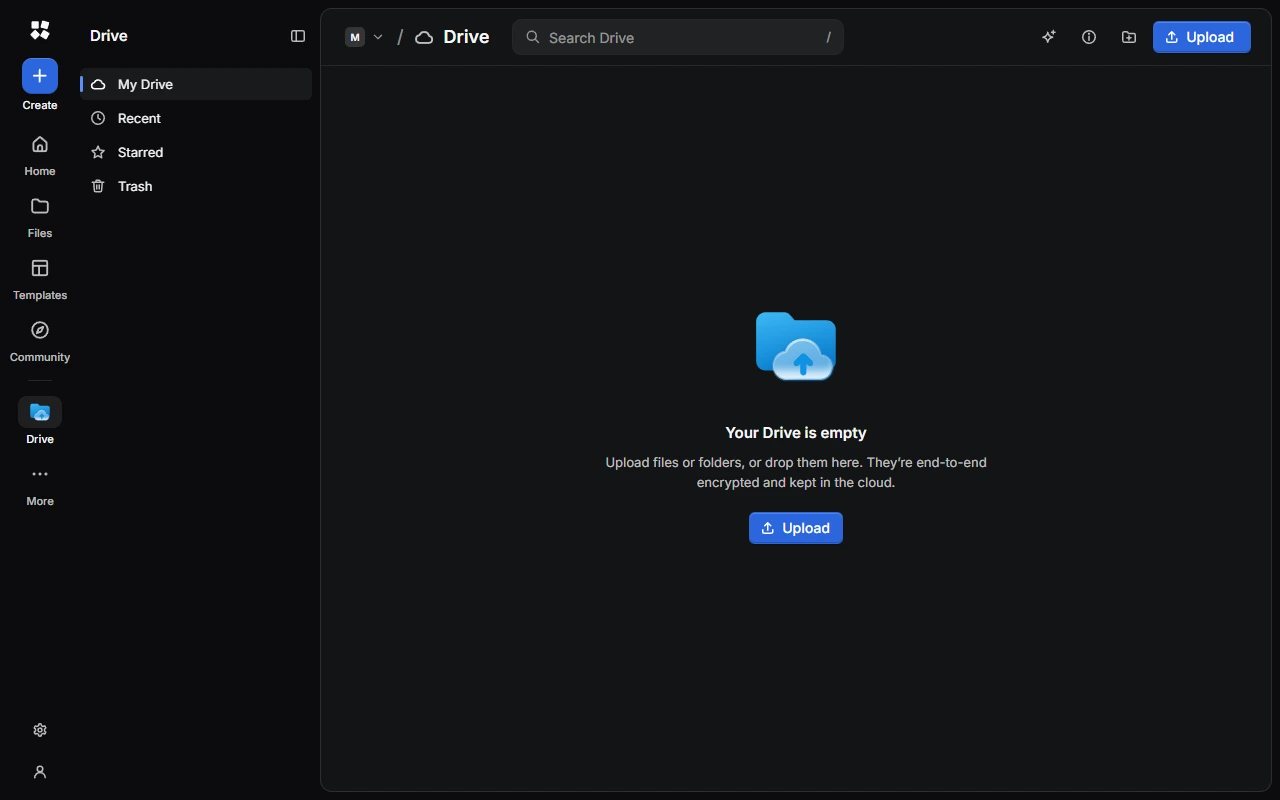
Drive keeps your files in your CYC Studio Cloud account, end-to-end encrypted, so you can reach them on any device you sign in on. Nobody at CYC Studio can read them.
Drive needs a CYC Studio Cloud account. If you aren't signed in, Drive shows Sign in to use Drive.
Upload files
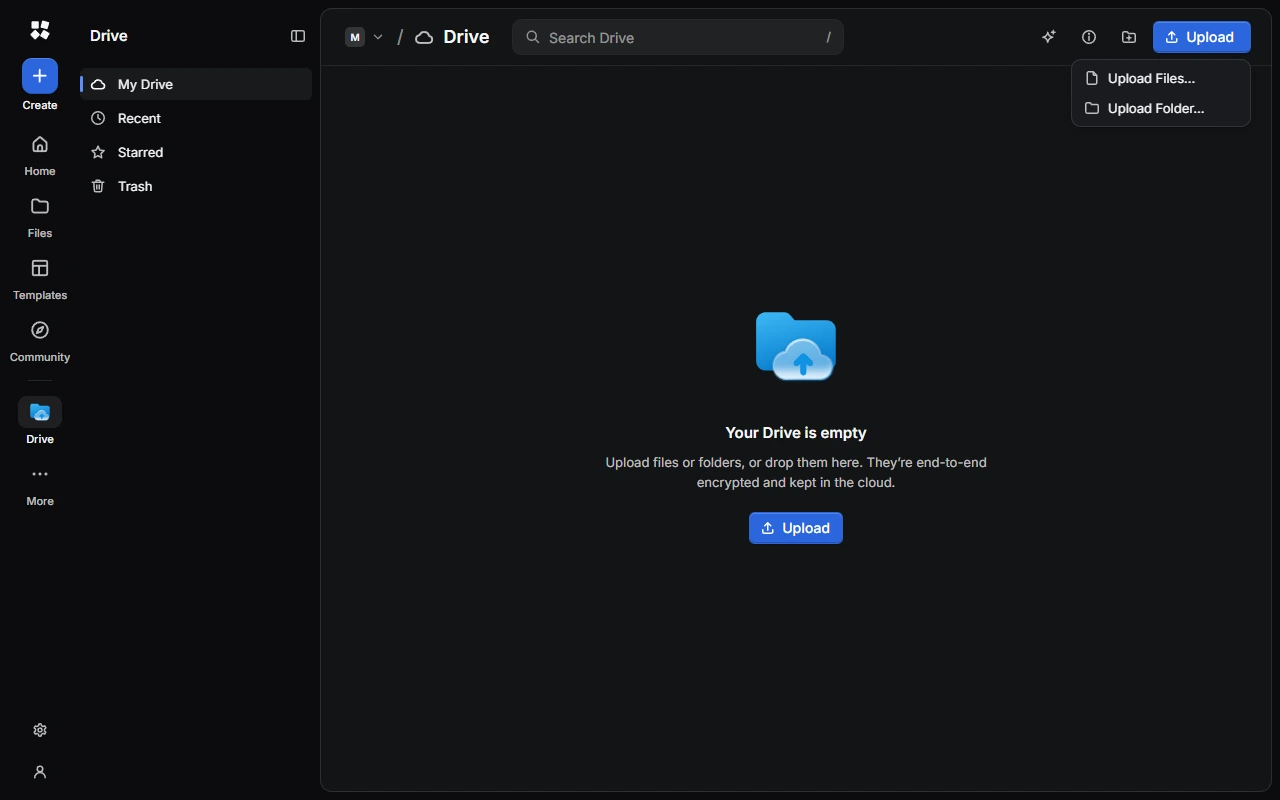
Choose Upload, then Upload Files… or Upload Folder…, or drag files onto the page. A panel shows each upload's progress, so keep the page open until they finish. To stop, choose Cancel All Uploads.
Files count towards your cloud storage. To save space, turn on Compress Files in Settings › Drive › Uploads. JPEG photos over 1 MB get smaller, which also removes details like the camera and location. Videos, music, PDFs and Office files upload as they are.
Organise files
The sidebar has My Drive, Recent, Starred, Trash, your Folders and your Tags.
- Folders: choose New Folder, and give it its own icon and colour. Choose Edit Folder… to change them later.
- File menu: download, Rename…, Move To…, star, Share Link… or Move to Trash. Folders download as a ZIP file.
- Several at once: choose Select to pick several files, then move, download or trash them together.
Find files fast
- Show Type shows just one kind of file, such as Photos, Videos, PDFs, Documents or Archives.
- Sort Items By sorts by Name, Date Added or Size.
- View Options shows files as a Grid or List, with or without Show Thumbnails.
Tags
Choose Info to see a file's size, type, dates and sharing. Then choose Add Tag to tag it, or pick from Your Tags.
Each tag appears under Tags in the sidebar. Open its menu to Rename Tag…, or Remove Tag… from every file. Removing a tag never removes the files.
The trash
You can restore files from the trash for 30 days. After that, they're deleted for good. To delete them sooner, choose Delete Forever… or Empty Trash.
Settings
Settings › Drive shows how much space Drive uses, and has Compress Files and Erase All Drive Files.
Next steps
Last updated on 13 November 2026