Workspaces
Keep separate spaces for different parts of your life, and share a workspace with other people
About
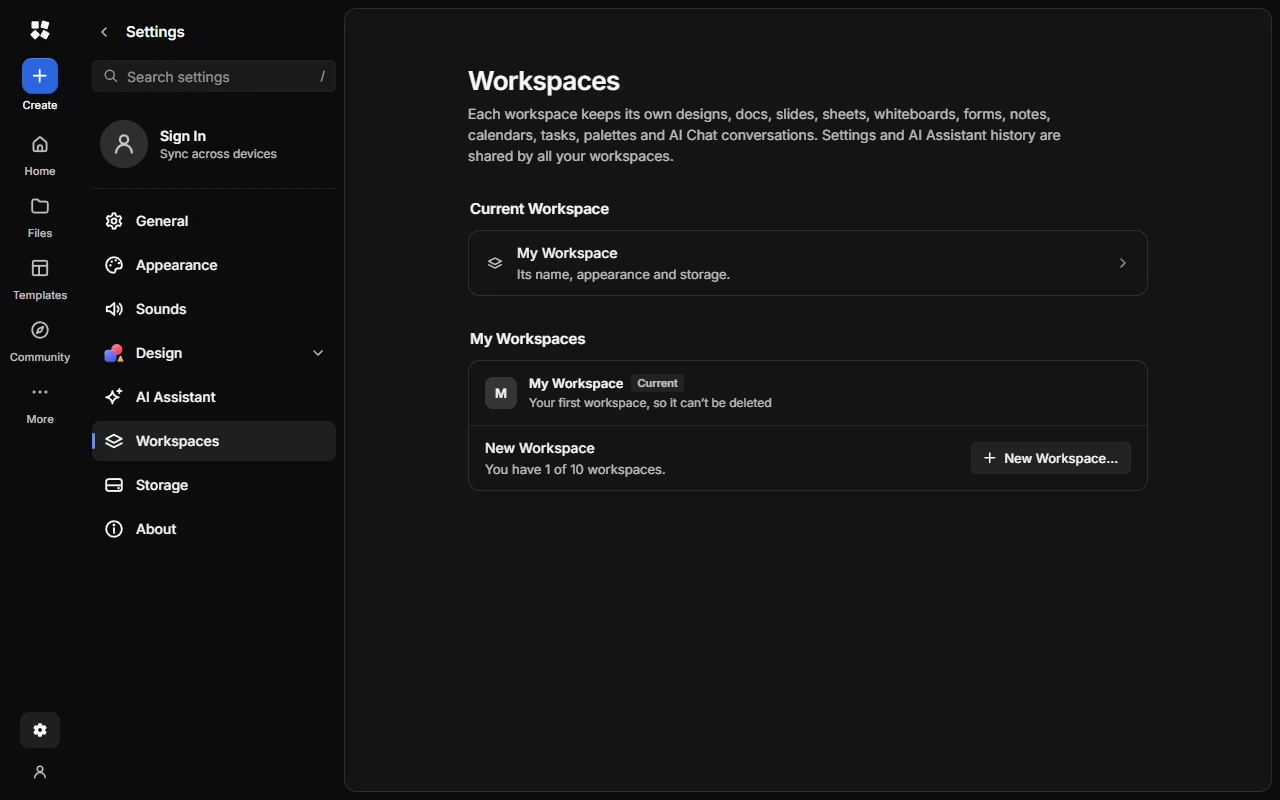
Each workspace keeps its own designs, docs, slides, sheets, whiteboards, forms, notes, calendars, tasks, palettes and AI Chat conversations. Your settings and AI Assistant history are shared by all of them. You start with one called "My Workspace", and can have up to 10, including ones people share with you.
Create a workspace
Choose New Workspace
Go to Settings › Workspaces and choose New Workspace…, or open the workspace switcher at the top of the page and choose New Workspace.
Name it
Give the workspace a name, and a picture or a colour and icon.
Create it
Choose Create Workspace.
You don't need an account to make a workspace. It stays on your device until you choose Add to Account.
Switch workspaces
Open the workspace switcher at the top of the page and choose a workspace, or press Ctrl + K and type its name. To move something to another workspace, open its menu and choose Move to Workspace….
Share a workspace
You can share any workspace except your first one. You need to be signed in.
- Switch to the workspace, then go to Settings › Workspaces › Current Workspace › Members.
- Invite people:
- By email: choose Invite People…, enter up to 10 email addresses, choose their access, then choose Send Invites. Invites last 7 days and only work for the address you sent them to.
- By link: choose Create Link, then Copy Link. Anyone with the link can join.
- When someone accepts, they choose Join Workspace.
A workspace can have up to 20 members.
Invite links give Full Access unless you change it, and anyone with one can join and read everything in the workspace. Only share them with people you trust. To stop a link working, choose Reset Link… or Turn Off Link.
Access levels
| Access | What they can do |
|---|---|
| Owner | Everything, including deleting the workspace |
| Admin | Everything Full Access can do, plus inviting and removing people |
| Full Access | Add, change and delete designs, notes and folders |
| Design Editing | Add and change designs, but not notes or folders |
| View Only | Look, but not change anything |
Only the owner can make someone an admin. To change someone's access, or Remove from Workspace…, open their menu in Members.
How sharing stays private
Everything in a shared workspace is end-to-end encrypted with a key every member holds, so nobody at CYC Studio can read it. Members can see each other's display names, access and when they joined, but not their email addresses.
If you remove someone, the workspace's designs, notes and folders are removed from their devices the next time they sync, and their AI chats in it are deleted. If there's an invite link, they can rejoin with it until you choose Reset Link…, so reset it too. If a member uses CYC Studio AI on something in the workspace, what the assistant reads goes to OpenAI.
Leave or delete a workspace
Go to Settings › Workspaces › Current Workspace:
- In a workspace shared with you, choose Leave… under Leave Workspace. Your copy is removed from your devices, and your AI chats in it are removed from your account. What you added stays in the workspace.
- In a workspace you own, choose Delete… under Delete Workspace, and type its name to confirm.
Your first workspace can't be deleted.
Last updated on 13 November 2026