Live sessions
Work on the same file with up to 30 people in real time, with nothing to sign up for
About
Start a live session to work on a design, note, doc, presentation, sheet, whiteboard or form with up to 30 people at once. Anyone with the link can join, and nobody needs an account. What you share is end-to-end encrypted, so nobody at CYC Studio can see it.
Start a session
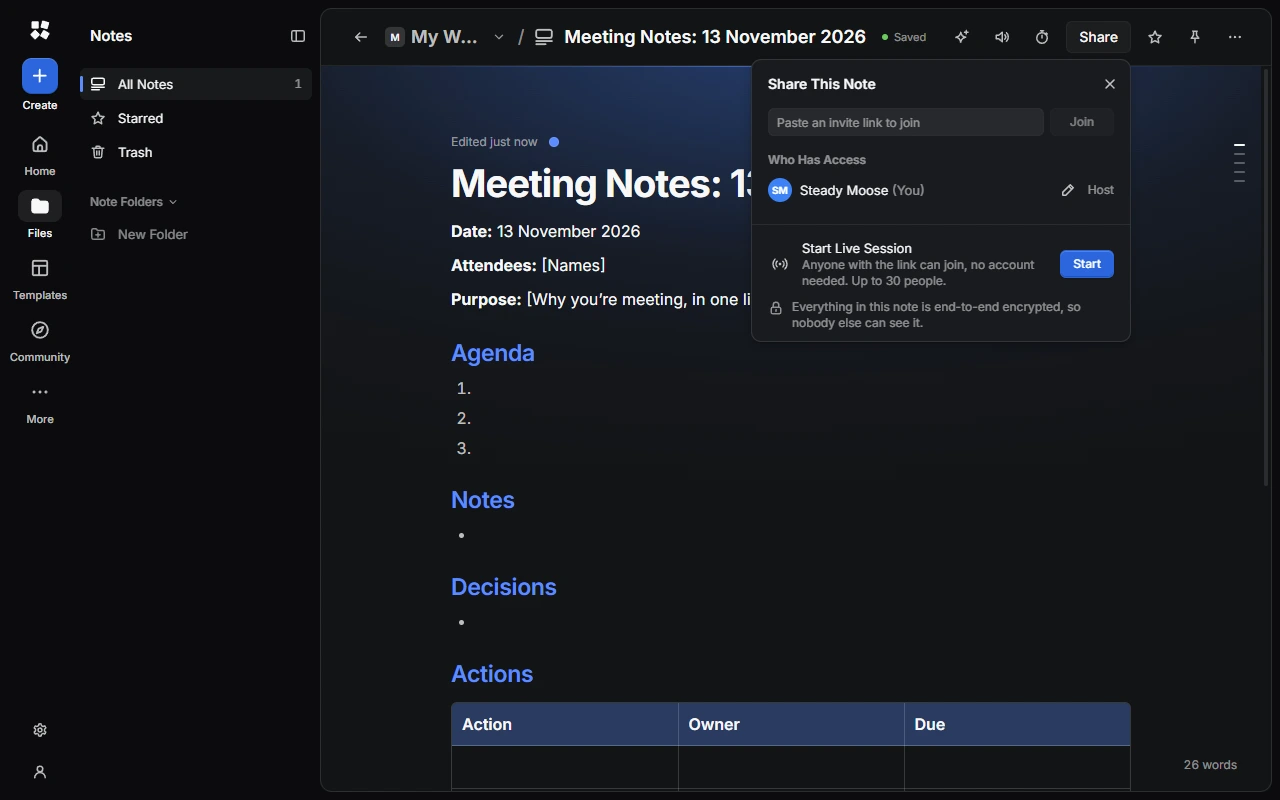
Choose Share
Open the file and choose Share in the top bar.
Start the session
Under Start Live Session, choose Start.
Invite people
Choose Copy Link and send it to the people you want to join. You can also choose Show QR Code for people nearby.
You're the host. Everyone in the session appears in the top bar. Click someone to follow what they're looking at.
By default, anyone with the link can join straight away, edit and save a copy. Only share the link with people you trust, or limit who can join.
Choose who can join and edit
In the Share panel, the host can:
- choose whether new guests Can Edit or Can View;
- choose Who Can Join: Anyone, Ask First (you approve each person with Allow or Deny) or Nobody New;
- turn on Require Passcode, and share the passcode separately, or set your own (4 to 10 letters or numbers);
- choose Reset Invite Link so the old link stops working.
Under More Settings, you can freeze editing for everyone, give guests random names, and choose whether guests can save a copy.
Manage people
Open a person's menu to change whether they can edit, follow them, or Remove them. Remove and Block stops them joining again from that device. If someone deletes something by mistake, choose Restore. Bring Everyone Here moves everyone to what you're looking at.
Join a session
Open the invite link, or paste it into Paste an invite link to join in the Share panel. Enter your name (or choose Random Name), and the passcode if there is one, then choose Join.
If you're signed in, people see your display name and picture. To join under a different name, turn off Show My Name and Picture in Settings › My Account › Your Info.
As a guest, you can Save a Copy (if the host allows it) or Leave Session.
Chat on the canvas
In Design, Slides and Whiteboards, point at the canvas and press / to say something next to your cursor (up to 100 characters). Press Enter to send it.
The timer and music are shared by everyone in the session.
When a session ends
A session ends when the host chooses Stop Session, leaves, or is offline for more than 5 minutes, and after 12 hours at most. The server then deletes everything from the session. The file stays on the host's device.
If you've been away for 5 minutes, CYC Studio asks Are you still there? If you're disconnected, choose Rejoin (or Reconnect if you're the host).
Staying safe
There's no report button in a session, and nobody at CYC Studio can see what happens in one. If someone worries you, leave the session, then email help@creatoryogames.com with what you can.
Live sessions need a secure connection, so they work at app.cycstudioapp.com and in the Windows app.
Last updated on 13 November 2026