Export, print and project files
Export designs as images or PDFs, print from the Windows app, and save project files
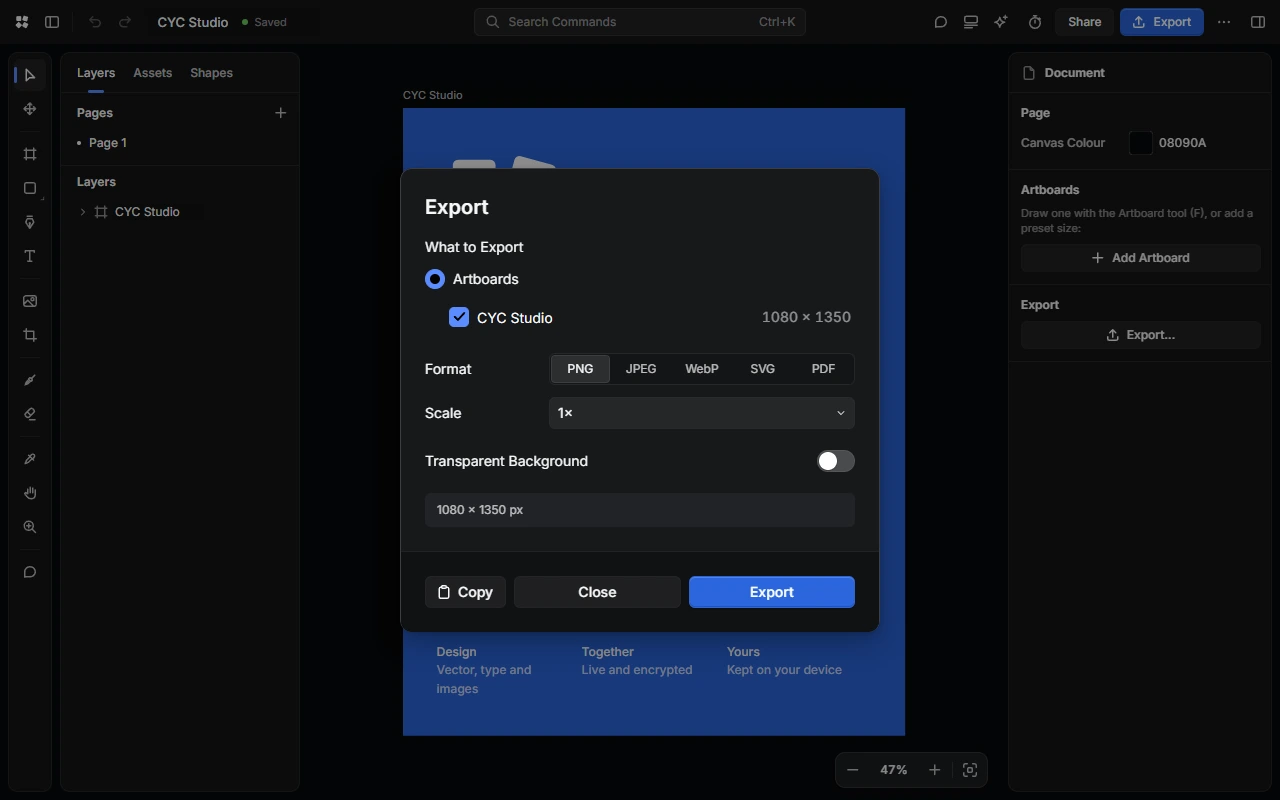
Export a design
Open Export
Choose Export in the top bar, or press Ctrl + Shift + E.
Choose what to export
Choose Artboards and tick the ones you want, or Selection to export only what's selected.
Choose a format
Choose PNG, JPEG, WebP, SVG or PDF. For PNG, JPEG and WebP, choose a Scale from 0.5× to 4×. PNG and WebP can have a Transparent Background, and JPEG and WebP have a Quality setting.
Export
Choose Export to download the file, or Copy to copy it.
Several artboards download together in one ZIP file. Files exported at a larger scale get "@2x" (or similar) added to their names.
PDFs are made from artboards, so choose Artboards to export one. For PDFs, Raster Quality sets how sharp text and effects are, up to 600 dpi.
You can change the format and scale that Export starts with in Settings › Design › Export.
Copy straight to another app
Select something and press Ctrl + Shift + C to copy it as a PNG image, or Ctrl + Alt + C to copy it as SVG.
In the Windows app, choose More › Print… or press Ctrl + P. Choose to print the selection, this page or all pages, then pick a printer, the number of copies, colour, two-sided printing and layout. Change in Properties has more options, such as pages per sheet, scale, margins, crop marks and mirroring.
In a browser, export a PDF and print that.
Project files
A .cyc-studio file holds a whole design, with its pages, images and fonts, so you can keep a copy or move it to another device.
- Save one: choose More › Download Project File (.cyc-studio), or press Ctrl + Shift + S.
- Open one: choose Import in your designs. The Windows app also opens
.cyc-studiofiles when you double-click them.
To save all your designs at once, use Download Backup.
Share and publish
- Start a live session to work on a design with other people.
- Publish it to Community to share it with everyone.
- Save versions to go back to earlier work.
Last updated on 14 November 2026