The Design editor
Find your way around the editor, its tools, pages, artboards and layers
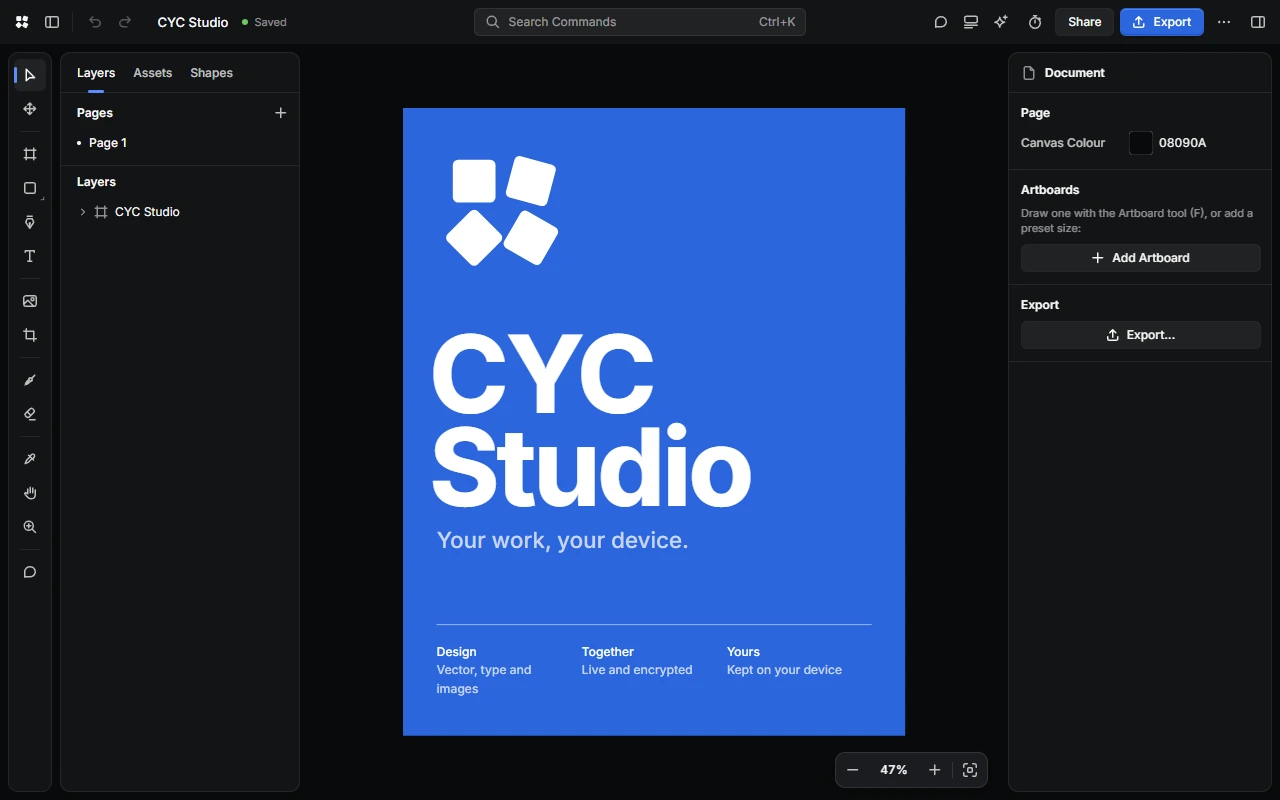
Layout
- Top bar: go back to your designs, show or hide the sidebar, undo and redo, and rename the design by choosing its name. In the middle, Search Commands (Ctrl + K) finds any command or tool. On the right are Comments, Notes, the AI Assistant, Timer and Music, Share, Export and the More menu.
- Tools run down the left edge.
- The left panel has three tabs: Layers, Assets (your images, fonts and colours) and Shapes.
- Properties, on the right, shows the settings for what's selected. With nothing selected, it shows the page colour, artboards and export.
- The zoom bar is at the bottom.
Tools
| Tool | Shortcut |
|---|---|
| Select | V |
| Move (Deep Select) | M |
| Artboard | F |
| Rectangle | R |
| Ellipse | O |
| Line | L |
| Shape Library | Shift + S |
| Pen | P |
| Text | T |
| Place Image | Ctrl + Shift + K |
| Crop | C |
| Brush | B |
| Eraser | E |
| Colour Picker | I |
| Hand | H |
| Zoom | Z |
| Comment | Shift + C |
Polygon and Star are with the shapes. Press Enter with a shape or text tool to add one in the middle of the view.
Move around the canvas
- Pan: scroll, hold Space and drag, or drag with the middle mouse button.
- Zoom: hold Ctrl and scroll, or pinch. With the Zoom tool, click to zoom in, Alt-click to zoom out, or drag around an area.
- Zoom to 100%: Shift + 0. Zoom to fit: Shift + 1. Zoom to the selection: Shift + 2.
You can zoom from 2% to 6400%. Choose the percentage in the zoom bar for more options, such as Rulers, Smart Guides and Snapping and Pixel Grid.
Pages and artboards
A design can have up to 100 pages. Use Add Page in the Pages list, and right-click a page to rename, duplicate or delete it.
Artboards are the frames you export. Draw one with the Artboard tool (F), or choose Add Artboard in Properties. An artboard you draw takes in the layers inside it. Select an artboard to change its size, clip its content, show a layout grid, add guides or set its background.
Layers
The Layers list shows everything on the current page. Drag layers to reorder them, use the buttons on each row to lock or hide them, and double-click (or press F2) to rename one. Right-click for Group, Ungroup, Lock, Hide, Delete and more.
To work inside a group, double-click it or press Enter.
Rulers, guides and measuring
- Press Shift + R to show rulers. Drag from a ruler onto an artboard to add a guide.
- You can also add guides in Properties › Guides with + Vertical and + Horizontal.
- Hold Alt while something's selected to measure the gaps around it.
- The pixel grid appears when you zoom to 800% or more.
Page notes
Each page has notes for your own reminders. Choose Notes in the top bar, or press Shift + N.
Show more of your design
- Show / Hide Panels: Ctrl + \
- Show / Hide Interface: Ctrl + /
For every shortcut, open More › Keyboard Shortcuts or press Ctrl + Shift + /.
Panels sit beside the canvas when the window is at least 1100 pixels wide. On smaller screens they open over the canvas.
Last updated on 14 November 2026