Write and format notes
Use blocks, the / menu, Markdown shortcuts, checklists, tables and links in your notes
Blocks
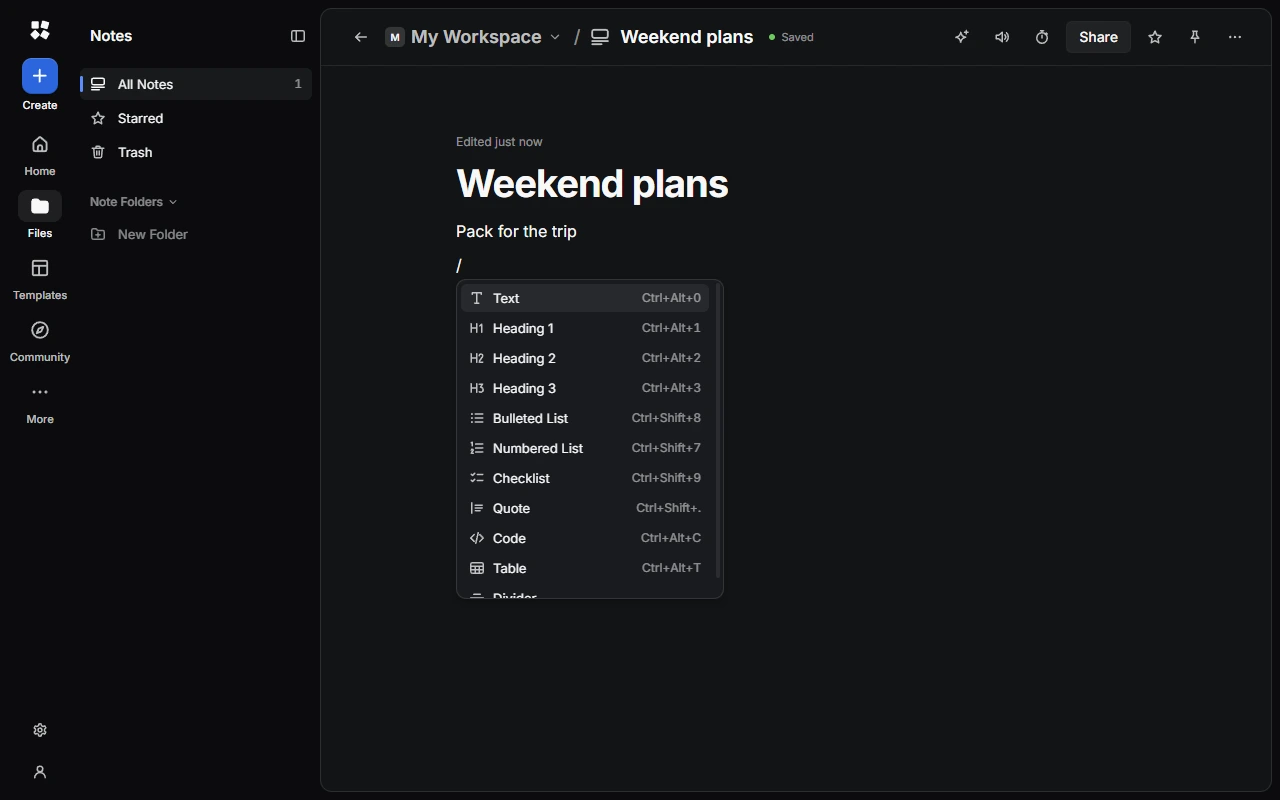
Each paragraph in a note is a block. A block can be Text, Heading 1, Heading 2, Heading 3, Bulleted List, Numbered List, Checklist, Quote, Code, Divider or Table.
Add a block with /
Type / at the start of a line to open the Insert menu. Keep typing to filter it, then press Enter to choose.
Move and change blocks
Point at a block to see its handle. Choose + to add a block below, or choose the handle to turn the block into another type, duplicate it, move it, indent it or delete it. You can also drag the handle to move the block.
Format text
Select some text to show the formatting toolbar. Use it to make text bold, italic, underlined, crossed out or code, change the font, add a highlight or text colour, add a link, or ask the AI Assistant about it with Ask AI.
On phones and small windows, the toolbar sits at the bottom of the screen instead.
Markdown shortcuts
Type these at the start of a line:
| Type | To get |
|---|---|
#, ## or ### and a space | Heading 1, 2 or 3 |
-, * or + and a space | Bulleted list |
1. and a space | Numbered list |
[] and a space | Checklist |
> and a space | Quote |
--- | Divider |
``` | Code |
You can also type **bold**, *italic*, ~~strikethrough~~, ++underline++, ==highlight==, `code` and [text](link).
Checklists and tables
- Tick a checklist item with its box, or press Ctrl + Enter.
- In a table, the first row is the header. Use the table toolbar to add or delete rows and columns, colour a cell, row, column or the whole table, or delete the table. A table can have up to 100 rows and 12 columns.
Links
Paste a link onto selected text to link it, or paste a link on its own. To add or change a link, press Ctrl + K. Point at a link to open, copy or edit it.
Outline and word count
When a note has two or more headings, an outline appears beside it so you can jump between them. The bottom of the note shows the number of words and characters, and how long it takes to read.
Keyboard shortcuts
| Action | Shortcut |
|---|---|
| Bold, italic, underline | Ctrl + B, I, U |
| Strikethrough | Ctrl + Shift + X |
| Inline code | Ctrl + E |
| Highlight | Ctrl + Shift + H |
| Link | Ctrl + K |
| Text | Ctrl + Alt + 0 |
| Heading 1, 2 or 3 | Ctrl + Alt + 1, 2 or 3 |
| Bulleted list | Ctrl + Shift + 8 |
| Numbered list | Ctrl + Shift + 7 |
| Checklist | Ctrl + Shift + 9 |
| Code block | Ctrl + Alt + C |
| Table | Ctrl + Alt + T |
| Indent or outdent | Tab or Shift + Tab |
| Move a block up or down | Alt + ↑ or ↓ |
| Duplicate a block | Ctrl + D |
| New line in the same block | Shift + Enter |
| Save a version | Ctrl + Alt + S |
Limits
A note can have a title of up to 200 characters and up to 2,000 blocks. Notes don't hold images. For pictures, use Docs or Design.
Last updated on 13 November 2026