During a meeting
Use your microphone and camera, share your screen or present a file, chat, take notes and react
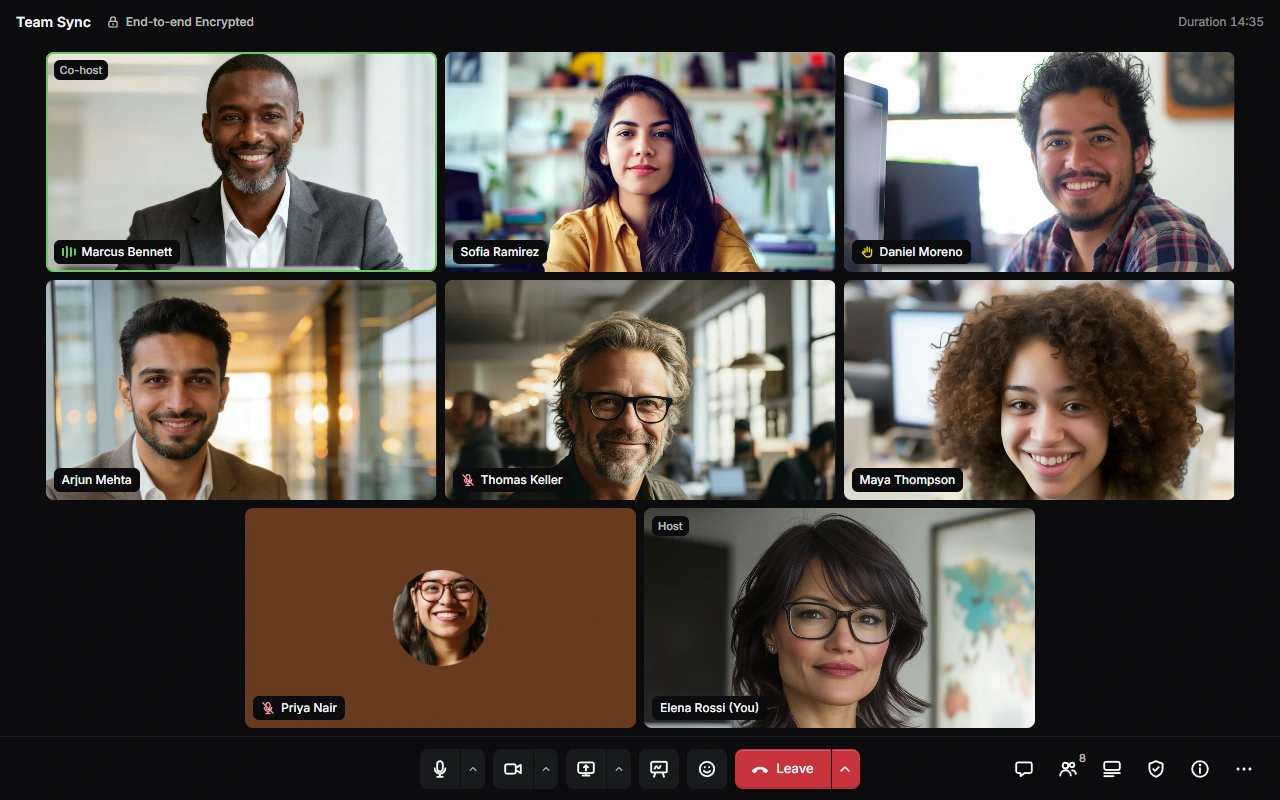
The controls
The bar at the bottom of a meeting has:
| Control | What it does |
|---|---|
| Mute / Unmute | Turns your microphone off or on. If your microphone hasn't been turned on yet, it says Turn On Microphone. The arrow next to it opens Microphone and Speaker, where you can pick devices, set the Meeting Volume and turn Noise Suppression on or off. |
| Turn Off Camera / Turn On Camera | Turns your camera off or on. The arrow next to it lets you pick another camera. |
| Share Screen | Shows your screen or a window to everyone. See Share your screen. |
| Present | Shows one of your files to everyone. See Present a file. |
| Reactions and Raise Hand | Sends a quick reaction, or raises your hand. |
| Leave | Leaves the meeting. |
| Chat | Opens the chat. A dot means there are messages you haven't read. |
| People | Shows who's in the meeting. |
| Notes | Opens notes that only you can see. See Take notes. |
| Host Controls | For hosts and co-hosts. See Host a meeting. |
| Meeting Info | Shows details about the meeting. See Meeting Info. |
| More Options | Layout, Accessibility, Auto-Hide Controls, Keyboard Shortcuts and Meet Settings…. In the Windows app, it also has Floating Controls. |
Point at a button to see its name and shortcut. If a host has turned something off for guests, such as sharing, its button is greyed out, and pointing at it tells you why. Share Screen and Present only show if your browser supports them. When the window is narrow, Notes, Host Controls and Meeting Info move into More Options.
At the top, you can see the meeting's name, End-to-end Encrypted, how long the meeting has been going, and your connection's latency and packet loss. Choose the latency to see more Connection Stats, such as your download and upload speeds, measured on your device. In the last 5 minutes, the top also shows how long is left.
Hide the controls
To give the meeting more room, choose More Options › Auto-Hide Controls. The controls at the bottom hide until you point at the bottom edge of the meeting, or tap it, and the meeting moves up to make room for them. A dot at the bottom edge means you have messages you haven't read, or someone is waiting to be let in.
The controls stay in view while a side panel, Notes or a file is open. Your keyboard shortcuts still work while they're hidden. To turn this off, choose Auto-Hide Controls again.
See everyone
Choose More Options › Layout to see people in a Grid, or to show whoever's speaking large with Speaker. In the same menu:
- Fit Whole Video shows each person's whole picture, instead of cropping it to fill their tile.
- Hide Myself leaves your own video out of your view. Other people still see you.
- Hide People Without Video shows only the people whose camera is on.
If there are more people than fit on the screen, choose More People or Previous People to see the rest.
To keep someone large on your screen, open the ⋯ menu on their tile, or next to their name in People, and choose Pin. To undo it, choose Unpin. When someone shares their screen or presents a file, it fills most of the meeting.
Under More Options › Accessibility:
- Announce People and Messages says aloud when people join or leave and when a message arrives, using a voice on your device. Use headphones so your microphone doesn't pick it up.
- Name Who's Speaking shows who's talking at the top of the meeting.
- Large Name Tags makes the names on people's video bigger.
- Reduce Motion turns off flying reactions, effects and button animations.
Your choices are kept on that device. You can also change them in Settings › Meet › In Meetings.
Share your screen
Choose Share Screen
Choose Share Screen in the bar at the bottom, or press S.
Pick what to share
In a browser, pick what to share in the window your browser shows. In the Windows app, pick a screen or window under Screens or Windows. To let people hear what's playing on your computer, turn on Include System Audio, and use headphones so people don't hear themselves.
What you share is encrypted before it leaves your device. To stop, choose Stop Sharing. Only one person can share at a time, and the host can choose who's allowed to. Most phones can't share their screen.
The arrow next to Share Screen opens Screen Sharing:
- Under Optimise For, choose Text and Detail to keep text and small details sharp, or Video and Motion to keep videos and animations smooth.
- While you're sharing, choose Share Something Else… to switch to another screen or window.
In the Windows app, choose More Options › Floating Controls to keep a small bar with Mute, your camera, Share Screen and Leave Meeting on screen while you work in other windows. If someone is presenting, you can see it there too. Drag the bar to move it, choose Back to the Meeting to go back, or choose Close Floating Controls to close it.
Present a file
Choose Present, or press W, and pick a whiteboard, slides, design, doc, sheet or form from your files. You can search for it, use Show to see one kind of file, or start a New Whiteboard.
Only you see the file until you turn on Show to Everyone. In slides, choose Previous and Next, or press ← and →, to move between them. Docs, sheets and forms update for everyone about once a second.
To stop, choose Close and the kind of file, such as Close Slides.
Chat
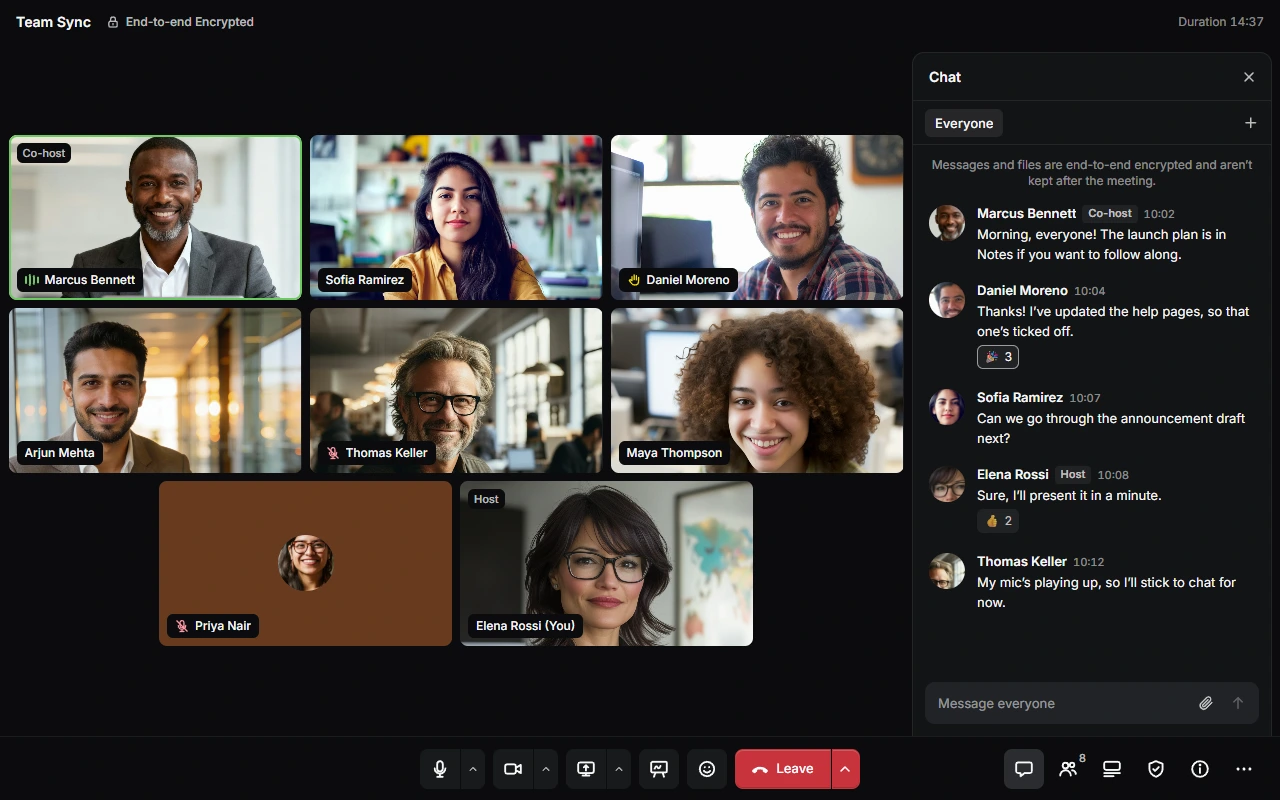
Choose Chat, type in Message everyone and press Enter to send. Press Shift + Enter for a new line. Messages can be up to 2,000 characters.
- Reply: point at a message and choose Reply. Replies are grouped under the message they answer, so choose View 2 Replies, for example, to see them.
- Mention: type @ and choose a name. If they have the chat closed, they're told you mentioned them.
- React: point at a message and choose 👍, ❤️ or 😂, or More Reactions for others. Point at a reaction to see who sent it.
- More: open Message Actions to Copy Text, or Delete Message if you sent it. Hosts and co-hosts can delete any message.
- If a message shows Not sent., choose Try Again.
Messages and files are end-to-end encrypted and aren't kept after the meeting. People who join later don't see earlier messages.
Threads
Hosts and co-hosts can add threads to keep conversations apart, such as one for questions. Threads show as tabs above the messages, with Everyone first. Choose a thread to read and write in it. A thread with messages you haven't read is marked. See Manage the chat.
Share a file
Choose Attach File, then:
- Upload from Device… to pick a file on your device. You can also paste a file into the message box.
- Add from Drive… to send a file from your Drive. You need to be signed in.
- Add from Your Files… to send a copy of one of your CYC Studio files, such as a design or doc.
Before you send it, you can choose Preview to check it, or Remove File. Files can be up to 10 MB each, and can't go in private messages.
To open a file someone sent, choose it in the chat. Choose Save a Copy to download it. For a CYC Studio file, choose Use This to add a copy to your files.
Private messages
If the host allows it, guests can choose Message Hosts Privately in Everyone to write to the hosts and co-hosts. It's there while a host or co-host is in the meeting. To answer a message privately, open its Message Actions and choose Reply Privately. Hosts and co-hosts can also choose Message Privately in a guest's ⋯ menu.
A private message goes to the person you're writing to and to the hosts and co-hosts in the meeting. Nobody else can read it. Private messages can be up to 600 characters, and can't have files or reactions. To write to everyone again, choose Message Everyone.
Take notes
Choose Notes, or press N, to write notes during the meeting. Nobody else in the meeting sees them. Use the bar at the top to format them, and drag the handle to make them bigger or smaller.
Your notes are kept in that browser tab, for one meeting at a time. They're still there if you reload the page, but they're gone when you close the tab. To keep them, choose Save to Notes. They're saved in Notes as a note named after the meeting, and you can choose View to open it.
Meeting Info
Choose Meeting Info, or press I, to see the meeting's host and co-hosts, when it was created and started, when it ends and until when its link works. It also shows how many people are in it, who can join and whether it's being recorded. Hosts and co-hosts can copy the invitation link here too. See Invite more people.
Reactions and raising your hand
Choose Reactions and Raise Hand to send a reaction or choose Raise Hand. Press R for reactions and Y to raise or lower your hand. The host can turn reactions off for guests. If only hosts can unmute, raise your hand to ask to speak.
When a meeting is recorded
Hosts and co-hosts can record a meeting. When they do, everyone is told, and a red Recording bar stays at the top of the meeting until it stops. If you join a meeting that's already being recorded, you're told before you go in. If you don't want to be in the recording, you can leave at any time.
If you can't hear anyone
If your browser holds back the meeting's sound, a message says so. Choose Turn On Sound. If you still can't hear anyone, check the speaker and Meeting Volume in the menu next to Mute, or see Fix problems in Meet.
To hear one person more quietly, open the ⋯ menu on their tile or in People and choose Adjust Volume…, or choose Mute for Me to stop hearing them. 100% is their normal volume. It only changes what you hear on that device.
Last updated on 14 November 2026