Host a meeting
Let people in, choose what guests can do, manage the chat, record a meeting, and manage the people in it
Hosts and co-hosts
The person who made a meeting is its host. The host can make other people co-hosts to help run it. Hosts and co-hosts can:
- let people in from the waiting room;
- change the Host Controls;
- mute guests, block their microphone and camera or their messages, turn off their cameras, stop their screen sharing, lower their hands, message them privately and remove them;
- add and manage chat threads, and delete any message;
- record the meeting and play effects;
- copy the invitation link from Meeting Info.
Only the host can make or remove co-hosts, manage co-hosts, regenerate the invitation link during the meeting, stop someone else's recording and end the meeting for everyone.
Let people in
When someone asks to join, a dot appears on People, and you hear a sound if Meeting Sounds is on. Choose People to see them under Waiting, along with whether each person is signed in to CYC Studio or a guest. Choose Admit or Deny, or Admit All to let everyone in.
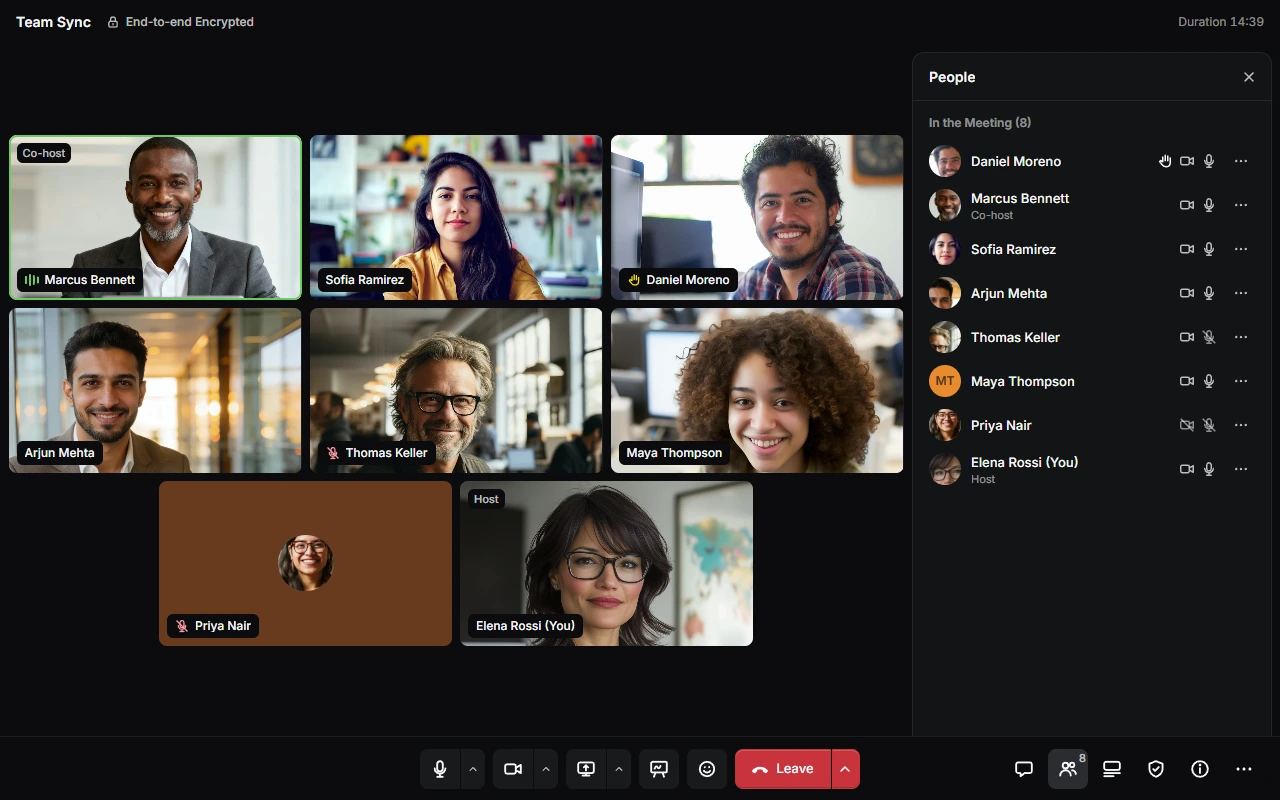
Only let in people you expect. Up to 20 people can wait at once, and anyone who isn't let in within 10 minutes has to try again.
Host Controls
Choose Host Controls in the bar at the bottom, or press H. If the window is narrow, it's under More Options.
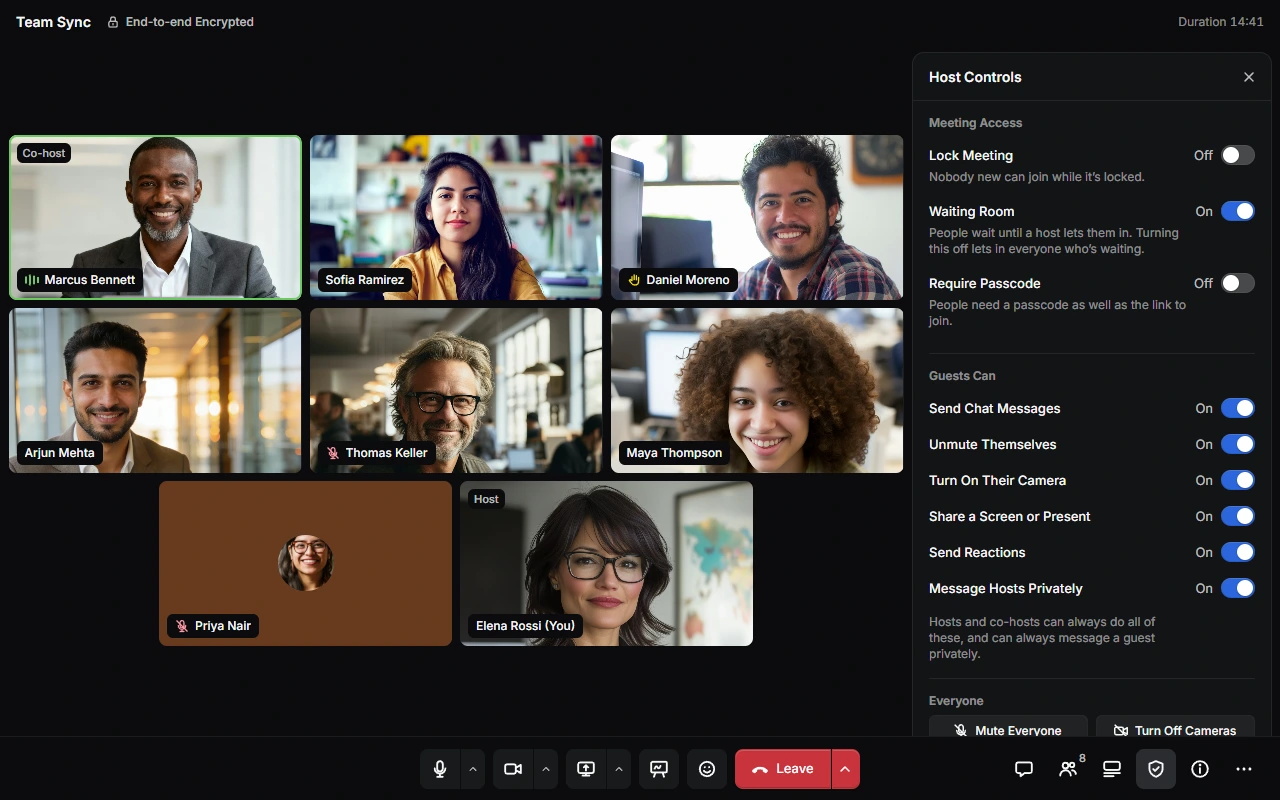
- Meeting Access:
- Lock Meeting stops anyone new joining, though the host can still get in.
- Waiting Room makes new people wait until a host lets them in. Turning it off lets in everyone who's waiting.
- Require Passcode asks for a passcode as well as the link. To change it, type a new one and choose Save, or choose New Passcode. Choose Copy Passcode to copy it. If lots of wrong passcodes are tried, you're told, so you can change it.
- Guests Can: turn Send Chat Messages, Unmute Themselves, Turn On Their Camera, Share a Screen or Present, Send Reactions and Message Hosts Privately on or off.
- Everyone:
- Mute Everyone and Turn Off Cameras also turn off Unmute Themselves and Turn On Their Camera, so guests stay muted and off camera until you turn those back on.
- Lower All Hands lowers every raised hand.
- Clear All Chats… removes every message and file in Everyone and in every thread, for everyone. Private messages stay.
- Recording: Record Meeting…. See Record a meeting.
- Effects: Confetti, Balloons, Applause and Snow play on everyone's screen for a few seconds. They're skipped for people who have Reduce Motion on.
Hosts and co-hosts can always chat, unmute, use a camera, share and react, and can always message a guest privately. The meetings you make start with your choices under When You Host in Settings › Meet.
Manage the chat
Hosts and co-hosts can split the chat into threads, such as one for questions. Everyone in the meeting can read and write in them.
- Add a thread: choose New Thread above the messages, give it a name of up to 32 characters, and choose Create. A meeting can have up to 12 threads.
- Rename, clear or delete a thread: open the thread's ⋯ menu, or right-click it, and choose Rename…, Clear Chat… or Delete Chat…. Clearing removes every message and file in it for everyone, and deleting removes the thread too. Everyone can only be cleared.
- Reorder threads: drag them, or select one and press Alt + ← or →.
- Clear every chat at once: choose Clear All Chats… in Host Controls.
- Delete a message: open its Message Actions and choose Delete Message.
- Stop someone sending messages: open their ⋯ menu, or Message Actions on one of their messages, and choose Block from Messaging. They can't send messages, private messages or reactions until you choose Unblock from Messaging.
Record a meeting
Choose Record Meeting
In Host Controls, under Recording, choose Record Meeting….
Choose where to save it
In Record This Meeting, under Save To, choose:
- Drive to save it to Meeting Recordings in your Drive, end-to-end encrypted. You need to be signed in, with enough cloud storage left.
- This Device to save it to your downloads when recording stops.
Under Maximum Size, choose Most allowed, or a smaller size such as 100 MB. It shows roughly how many minutes that gives you. Recordings saved to this device can be up to 1 GB, and recordings saved to Drive can use the cloud storage you have left.
Start recording
Choose Start Recording. Everyone is told straight away, and a red Recording bar stays on their screen until it stops. People who join later are told before they come in.
A recording has everyone's sound and cameras, and anything shared or presented. Chat isn't recorded. Only one person can record at a time.
To stop, choose Stop Recording in the Recording bar or in Host Controls. The host can stop anyone's recording. A recording also stops by itself when it reaches its maximum size, or when the person recording leaves. If you try to close the tab while you're recording, your browser checks with you first.
When it's saved, choose View to watch it. Recordings are named after the meeting, with the date and time.
Some browsers can't record meetings. If yours can't, Record Meeting… is greyed out.
Manage people
In People, or on someone's tile, open their ⋯ menu:
- Pin keeps them large on your screen. Mute for Me and Adjust Volume… only change what you hear. Anyone can do these.
- Mute for Everyone turns their microphone off. If it's already off, Ask to Unmute asks them to turn it on, or Let Them Speak if only hosts can unmute.
- Block Microphone and Camera turns off their microphone and camera, and stops them turning them back on until you choose Unblock Microphone and Camera.
- Block from Messaging stops them sending messages and reactions until you choose Unblock from Messaging.
- Turn Off Their Camera, Stop Their Screen Sharing and Lower Hand do just that.
- Message Privately writes to a guest. Other hosts and co-hosts in the meeting can read it too.
- Make Co-host and Remove as Co-host change their role. Only the host can do this.
- Remove from Meeting… removes them straight away. They can't come back to the meeting from that device or account, and anyone joining from the same network has to wait to be let in, even with the waiting room off.
Co-hosts can only manage guests, though they can also mute other co-hosts. Nobody can manage the host.
If a guest raises their hand while only hosts can unmute, you're told they're asking to speak. Choose Let Them Speak to let them unmute.
Invite more people
To invite someone while the meeting is going on, choose Meeting Info, or press I. Under Invitation Link, choose Copy Link and send the link to them.
If the link reached people it shouldn't have, the host can choose Regenerate Link…, then Regenerate Link. The old link stops working for anyone who hasn't joined yet, and people in the waiting room are turned away. People already in the meeting stay. Send the new link to anyone else you want to invite.
End the meeting
To end the meeting for everyone, choose More Ways to Leave, the arrow next to Leave, then Leave and End Meeting for Everyone…. Choose End Meeting to confirm. Everyone is removed straight away and the invitation link stops working. This can't be undone.
If you just choose Leave, the meeting carries on without you.
When a meeting closes by itself
- Time limit: a call lasts up to 45 minutes. Everyone sees a warning 5 minutes and 1 minute before it ends, and the time left shows at the top. You can start it again from the same link.
- Nobody else there: if you're alone in a meeting for 10 minutes, it closes.
- The invitation runs out: the meeting ends for everyone.
Last updated on 14 November 2026