Start a meeting and invite people
Make a meeting, send its invitation link, and start it when you're ready
You need to be signed in to make meetings.
Make a meeting
Choose New Meeting
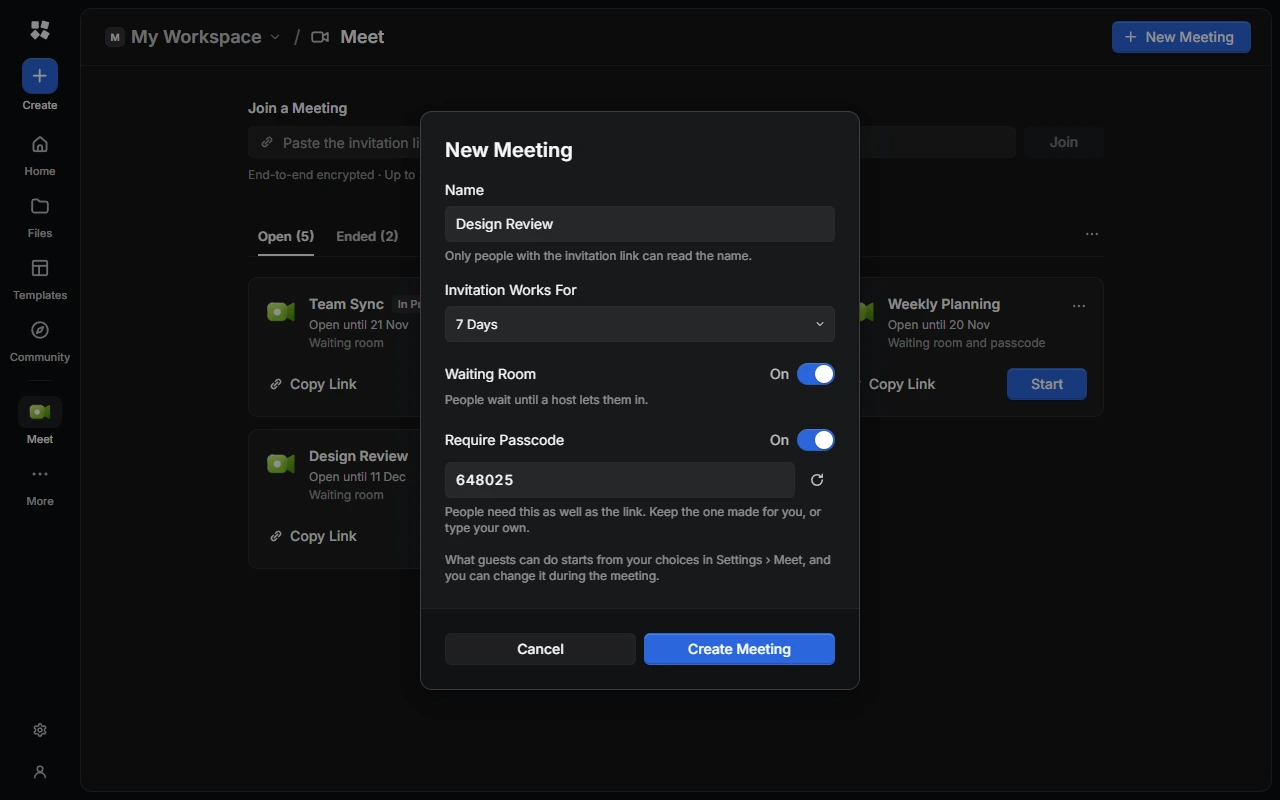
In Meet, choose New Meeting. You can also choose Create › Meeting from anywhere in CYC Studio.
Set it up
- Name: give the meeting a name, or leave it blank to call it "Meeting". Only people with the invitation link can read it.
- Invitation Works For: choose 1 Day, 7 Days or 30 Days. The meeting stays open until then.
- Waiting Room: when it's on, people wait until a host lets them in. Turn it off to let anyone with the link join straight away.
- Require Passcode: when it's on, people need a passcode as well as the link. A passcode is filled in for you, or your Default Passcode from Settings › Meet. Keep it, type your own, or choose New Passcode for another. Passcodes are 4 to 32 letters, numbers or symbols, with no spaces.
What guests can do, such as chat or share a screen, starts from your choices in Settings › Meet, and you can change it during the meeting.
Create it
Choose Create Meeting. In Meeting Ready, choose Copy Link and send the link to the people you want to invite. If the meeting needs a passcode, choose Copy Passcode and send it separately. Then choose Start Meeting to go in, or Done to start it later.
An invitation link carries the meeting's encryption key, and anyone who has it can ask to join. Share it somewhere private, and only with the people you want in the meeting.
Start or join your meeting
In Meet, choose Start on the meeting, or Join if it's in progress. In the lobby, check your microphone and camera, then choose Start Meeting, or Join Now if people are already there.
You can start a meeting again from the same link until its invitation runs out.
The invitation link
Each meeting has one invitation link, which works until the meeting's invitation runs out. To see it, open the meeting's ⋯ menu and choose Invitation Link….
- Copy Link copies the link. Copy Link on the meeting in your list does the same.
- If the meeting needs a passcode, it's shown here too. Choose Copy Passcode to copy it.
- Regenerate Link makes a new link, and the old one stops working for anyone who hasn't joined yet. People waiting to be let in are turned away, and people already in the meeting stay. Do this if the link reached people it shouldn't have.
If a meeting has no working link, Invitation Link… says so, and you can regenerate it there. Start and Join make a new link for you when they need one.
During a meeting, hosts and co-hosts can copy the link from Meeting Info. See Invite more people.
End or delete a meeting
In Meet, open the meeting's ⋯ menu:
- End Meeting… removes everyone from the meeting and stops its invitation link working. The meeting moves to Ended, and it's removed a day later.
- Delete… removes the meeting from your list straight away. If it's still open, it ends for everyone too.
Neither can be undone. You can also end a meeting while you're in it.
Last updated on 14 November 2026