Build a form
Add questions, sections and logic, design your form, and preview it
Add questions
Give the form a title and, if you like, a description. Then add questions:
Start a question
At the bottom of the form, where it says "Type a question, or press / to choose a type", type your question, press Enter and choose its type. Or press / to choose the type first.
Add the choices
For questions with choices, type each one. Choose Add Option for more, or Add "Other" to let people write their own answer.
Make it required
Open the question's handle and turn on Required if everyone must answer it.
Question types
| Type | What people do |
|---|---|
| Short Answer | Type a few words, an email address, a number or a link |
| Paragraph | Type a longer answer |
| Multiple Choice | Pick one option |
| Checkboxes | Pick any number of options |
| Dropdown | Pick one option from a list |
| Linear Scale | Pick a number on a scale, such as 1 to 5 |
| Rating | Give a number of stars, out of 3 to 10 |
| Choice Grid | Pick one option in each row |
| Checkbox Grid | Pick any options in each row |
| Ranking | Put items in order |
| Date | Pick a date |
| Time | Pick a time |
You can also add Text to explain something, and a Page Break to split the form into sections.
Change a question
Open a question's handle to turn it into another type, add a description, duplicate it, move it or delete it. You can also select a question and press Alt + ↑ or Alt + ↓ to move it.
Question settings
Select a question to see its settings in the inspector's Question tab. Depending on the type, you can shuffle the choices, set the shortest and longest answer, set the lowest and highest number allowed, and choose what a short answer accepts: any text, an email address, a number or a link.
Logic
Use the Logic tab to send people to different sections:
- On a page break, choose where people go After This Page: the next page, a later page, or Submit Form.
- On a multiple choice or dropdown question, choose where each answer leads with Go To Based on the Answer.
Design
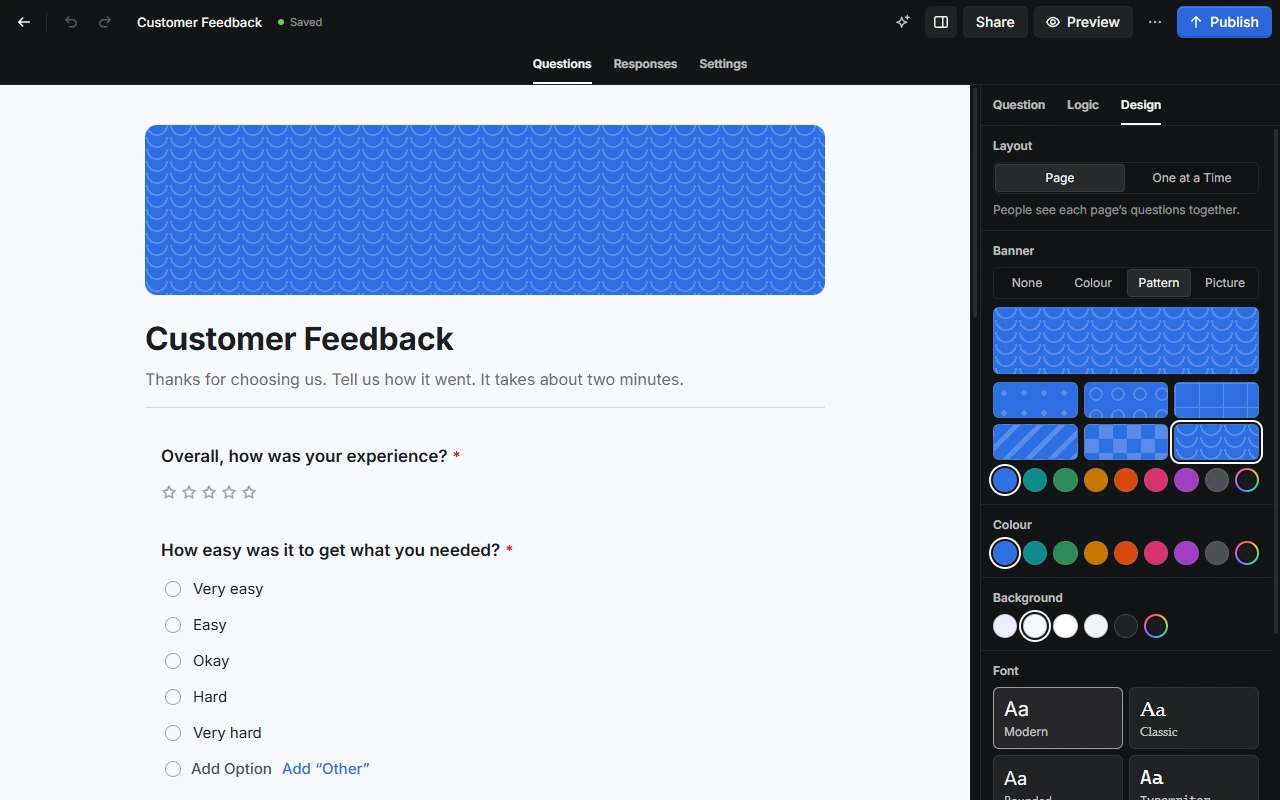
On the Design tab, choose:
- Layout: Page for the whole form at once, or One at a Time.
- Banner: none, a colour, a pattern, or a picture (cropped to 4:1).
- Colour, Background and Font (Modern, Classic, Rounded or Typewriter).
Form settings
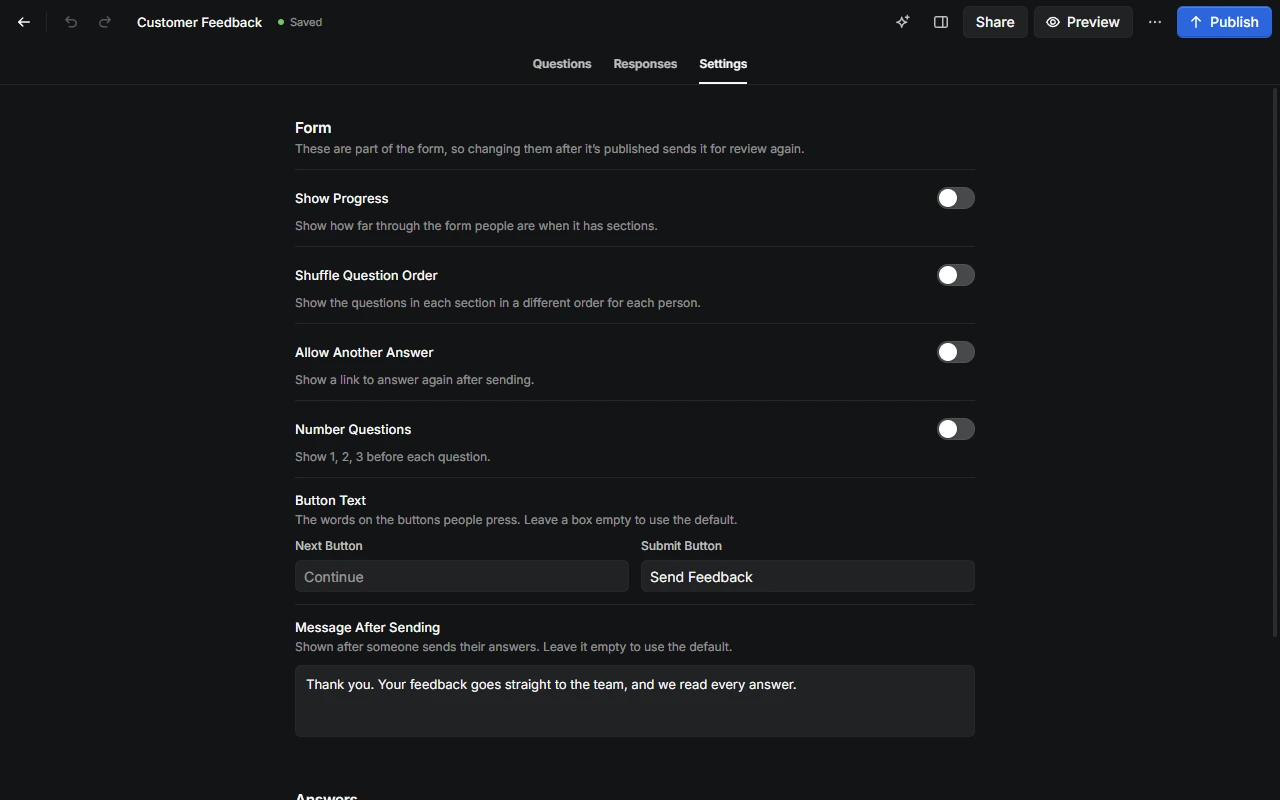
On the Settings tab:
- Form: Show Progress, Shuffle Question Order, Allow Another Answer and Number Questions. You can also change the words on the buttons, and the message people see after they send their answers. Changing these sends a published form for review again.
- Answers: once the form is published, require people to sign in, allow one answer per person, close the form automatically at a set time, or limit the number of answers (up to 10,000).
Preview
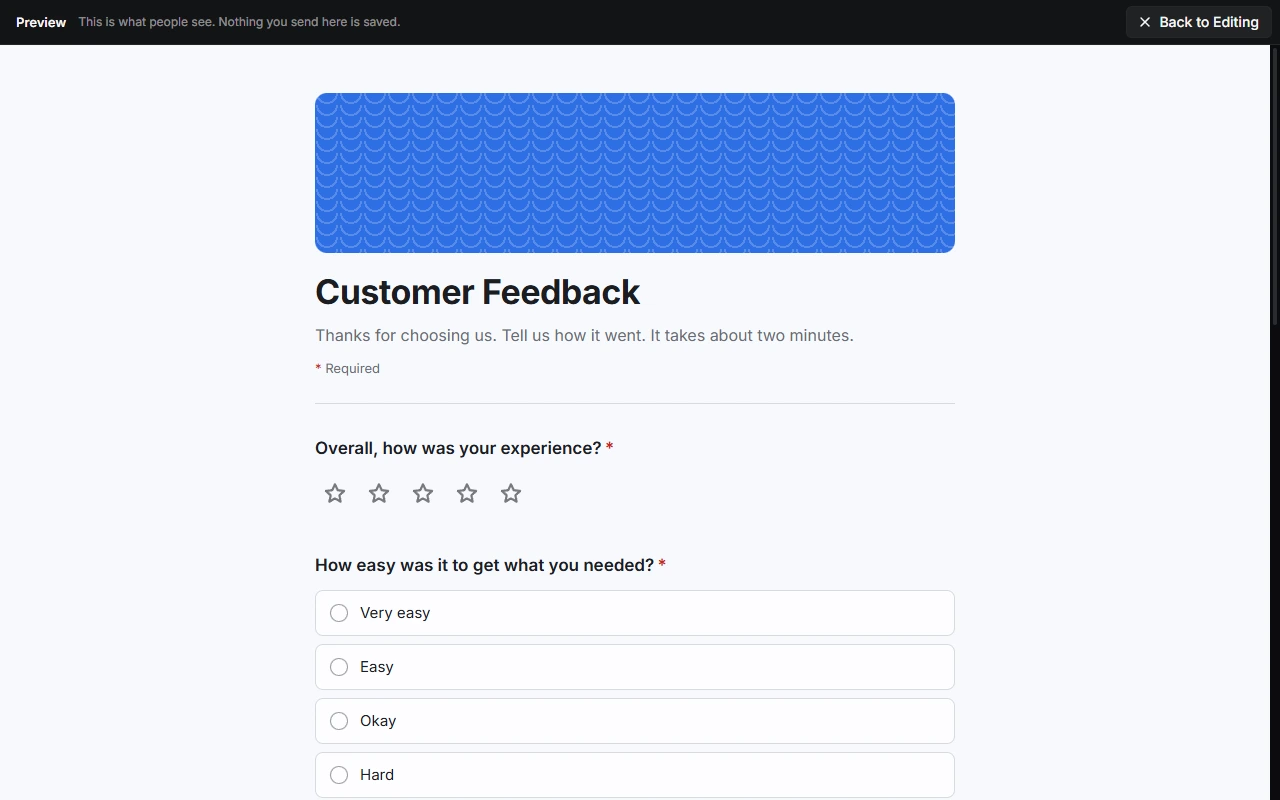
Choose Preview, or press Ctrl + Shift + P, to try the form as people will see it. Nothing you send in a preview is saved. Choose Back to Editing when you're done.
Never ask for passwords, bank or card details, sign-in codes or other secrets in a form.
Limits
A form can have up to 200 questions and other blocks, and a multiple choice, checkbox or dropdown question up to 100 choices. Short answers can be up to 500 characters, and paragraphs up to 5,000.
Last updated on 13 November 2026