Build your slides
Add and arrange slides, choose layouts and themes, and add transitions, animations and speaker notes
Add and arrange slides
- Choose New Slide at the top of the slide list, or press Ctrl + M. Use the arrow next to it to choose a layout first.
- Right-click a slide, or use its Slide Actions button, to duplicate, hide, move, change the layout of or delete it, or to present from it.
- Drag slides to reorder them, or select one and press Alt + ↑ or Alt + ↓.
- Grid View (Alt + G) shows every slide at once.
Empty slides show prompts such as "Click to add title". Click one and start typing.
Layouts
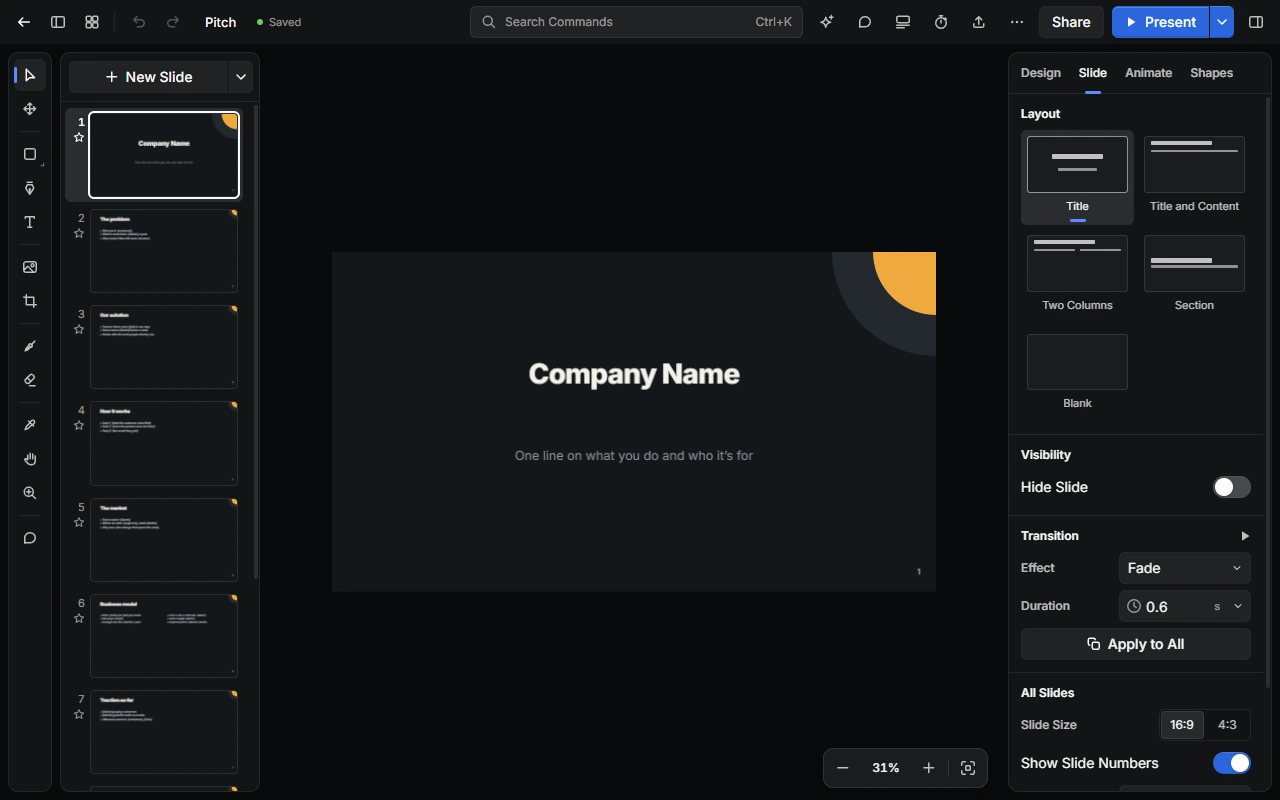
On the Slide tab, choose a Layout: Title, Title and Content, Two Columns, Section or Blank.
Themes and backgrounds
With nothing selected, the Design tab shows the presentation's look:
- Theme: one of 24 themes, such as Paper, Ink, Linen, Slate, Forest or Midnight.
- Background: a colour, an image (choose Add Image… or Paste Image) or a pattern, such as dots, grid, waves or rings. An image can Fill, Fit, Stretch or Tile.
Choose Apply to All to use the same background on every slide. To use a picture on a slide as its background, select it and choose Use as Background.
Text, shapes and images
Slides has the same tools as Design, so you can add text, shapes, lines, images and drawings. Select something to style it on the Design tab, or open the Shapes tab for the shape library. See Shapes, text and images.
Transitions
On the Slide tab, under Transition, choose an effect, such as Fade, Push, Wipe, Flip or Dip to Black. Push, Slide, Wipe, Reveal and Flip also let you choose a direction. Set the Duration (up to 5 seconds), then choose Preview Transition to see it, or Apply to All to use it on every slide.
Animations
Select something
Select the text, shape or picture you want to animate.
Add an animation
On the Animate tab, choose Add Animation. Entrance animations include Appear, Fade In, Pop In and Zoom In, and exit animations include Disappear, Fade Out, Pop Out and Zoom Out.
Set the timing
Choose whether it starts On Click, With Previous or After Previous, and set its duration (up to 10 seconds) and delay (up to 30 seconds). Choose Preview to watch it.
Speaker notes
Choose Speaker Notes in the top bar, or press Shift + N, to write notes for each slide. Presenter View shows them only to you. To show them on the slideshow itself, choose Show Notes.
Slide size, numbers and footer
Under All Slides on the Slide tab:
- Choose a slide size of 16:9 or 4:3.
- Turn on Show Slide Numbers, and choose where they go.
- Turn on Show Footer, type the footer text, and choose where it goes.
- Turn on Hide on Title Slides to keep numbers and the footer off title slides.
Hide a slide
To skip a slide when you present without deleting it, turn on Hide Slide on the Slide tab. Hidden slides are also left out of PDFs.
Last updated on 13 November 2026